
A Quick Tour of the Trader Dashboard
A quick tour of your FX Replay dashboard: the menu, quick actions, performance stats, day streak and recent sessions.
Your dashboard is your home in FX Replay. It's where you start sessions, track your progress and pick up where you left off. The numbers in the image match the sections below.
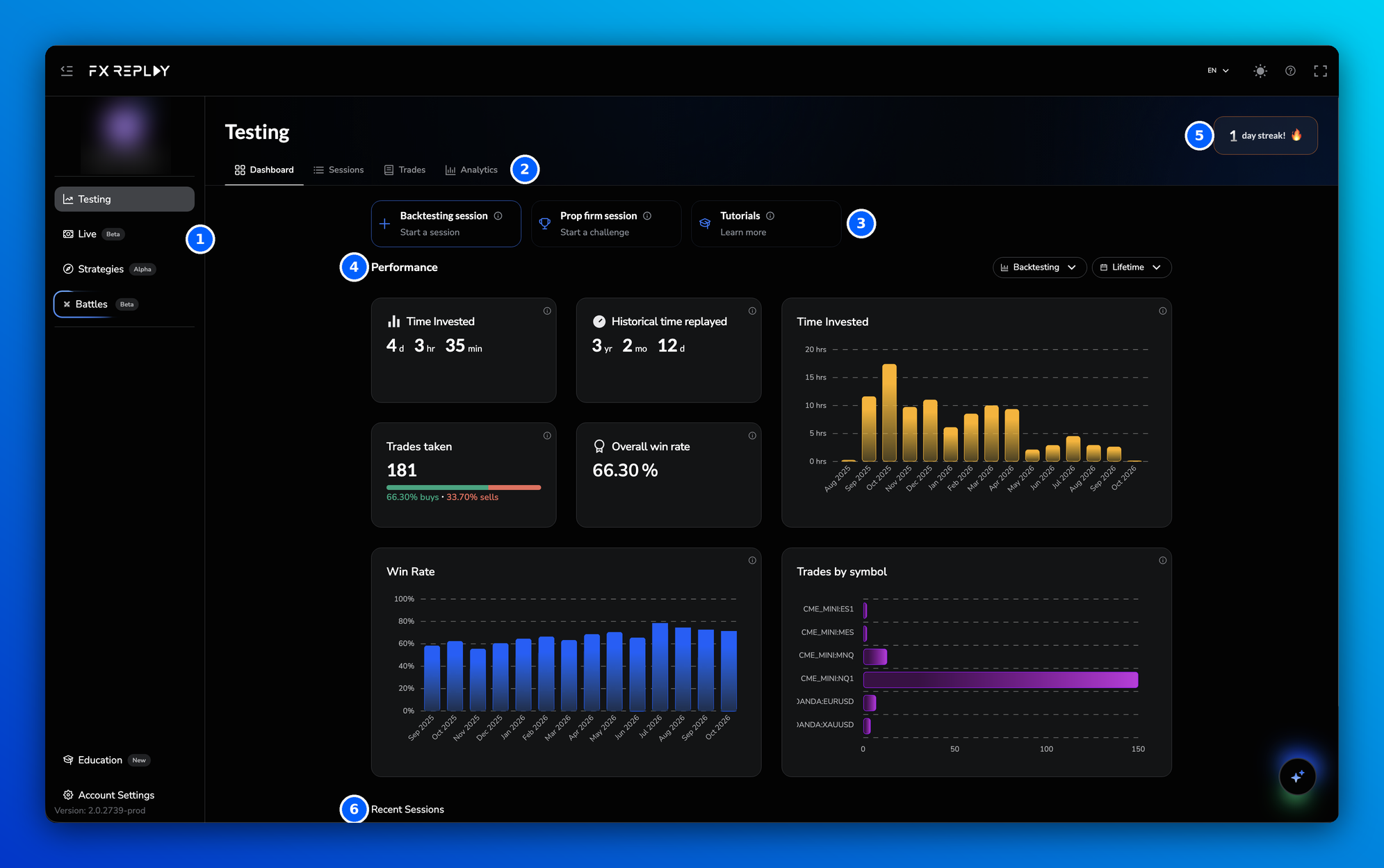
1. The left menu
| Menu item | What it's for |
|---|---|
| Testing | Your backtesting home, covered in this article. |
| Live | Your Live Journal, for tracking trades from a connected trading account. |
| Strategies | Create and manage your trading strategies. |
| Battles | Join or host trading competitions with other traders. |
| Education | Short interactive walkthroughs of FX Replay's features. |
| Account Settings | Your profile, subscription and preferences. |
Your username and current plan are shown at the top of the menu.
2. The Testing tabs
Click Testing in the left menu to see four tabs:
- Dashboard: your overview and quick actions.
- Sessions: all your backtesting sessions.
- Trades: every trade you've placed.
- Analytics: detailed performance stats.
3. Start a session
At the top of the Dashboard, choose what you want to do:
- Backtesting session: build data to refine your strategy. See How to Create Your First Backtesting Session.
- Prop firm session: test your strategy against prop firm rules. See Prop Firm Simulator: How It Works.
- Tutorials: open short interactive walkthroughs of FX Replay's features.
New to FX Replay? Before your first session, you'll see Here's how to get started below the buttons: short guides on creating a session, placing a trade and more. Use the arrows to browse them.
4. Track your performance
Once you've placed some trades, the Performance section shows your progress. Use the filters on the right to pick an activity (Backtesting, Battles, Prop Firm or All) and a time period (Last week, Last month or Lifetime).
| Card | What it shows |
|---|---|
| Time Invested | Real time you've spent on FX Replay |
| Historical time replayed | How much market time you've backtested |
| Trades taken | Total trades, split between buys and sells |
| Overall win rate | Win rate across all your trades |
| Win Rate | Your win rate over time |
| Trades by symbol | How many trades you've taken on each asset |
Hover over the ⓘ icon on any card for a short explanation.
5. Build a habit with your streak
Your day streak in the top right corner counts how many days in a row you've practised on FX Replay. Click it to see your activity in a Daily, Weekly or Yearly view.
To set a practice goal:
- Click Set Commitment.
- Choose how many hours you want to practise, per day or per week.
- Click Lock in my goal!
You can change your commitment at any time, and it won't affect your current streak.
6. Pick up where you left off
Scroll down to Recent Sessions. Search, filter or sort your sessions, then click ▶ to continue backtesting. You can also edit, duplicate, delete or view analytics for each session.
Frequently Asked Questions
Why are my dashboard cards empty?
The Performance cards fill in once you've placed trades. Create a session and take a few trades to see your stats.
What's the difference between "Time Invested" and "Historical time replayed"?
Time Invested is the real time you've spent on FX Replay. Historical time replayed is how much market history you've covered, for example replaying a month of price action in an hour.
Can I see stats for Battles or Prop Firm sessions only?
Yes. Use the activity filter above the Performance cards.
How do I continue a session I started earlier?
Find it under Recent Sessions on the Dashboard, or in the Sessions tab, and click ▶.
Can I change my practice commitment?
Yes, at any time. Open your day streak and update your commitment. It won't reset your streak.
How do I switch between light and dark mode?
Click the sun icon in the top right corner. You can also change the language from the EN menu next to it.
Related articles
Keep exploring this topic.