
How to Place Trades: Market, Limit & Stop Orders
Place trades on the New Chart with the position tool, the Place order window or the Buy and Sell buttons, with Market, Limit and Stop orders and shortcuts.
There are three ways to place a trade on the New Chart: plan it on the chart with the position tool, fill in the Place order window, or enter instantly with the Buy and Sell buttons. Still on the Legacy Chart? See the short section at the end.
Method 1: Position tool
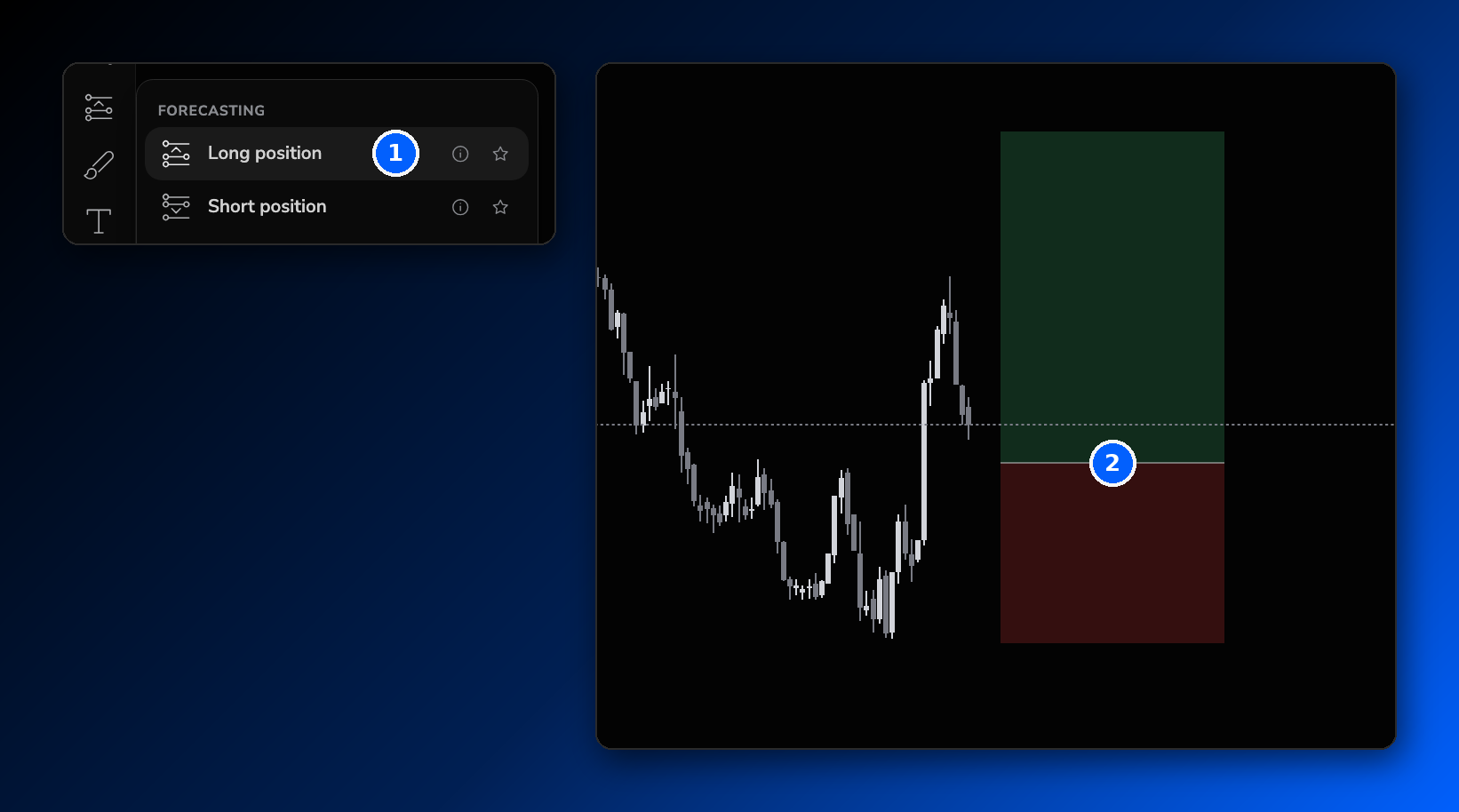
- In the left toolbar, open the Forecasting tools and select Long position or Short position (1).
- Place the tool on the chart and drag its handles to set your entry, stop loss and take profit (2).
- Keep the tool selected and click Order in the right panel.
The Place order window opens with your entry price, stop loss and take profit already filled in from the tool. Check the values and click Place order.
Method 2: Place order window
- Click Order in the right panel.
- Choose Buy or Sell, your risk, the order type (Market, Limit or Stop), units and entry price.
- Set your Stop loss and Take profit. Click Add partial for extra take profits, or turn on Auto breakeven.
- Add tags and a strategy if you use them, then click Place order.
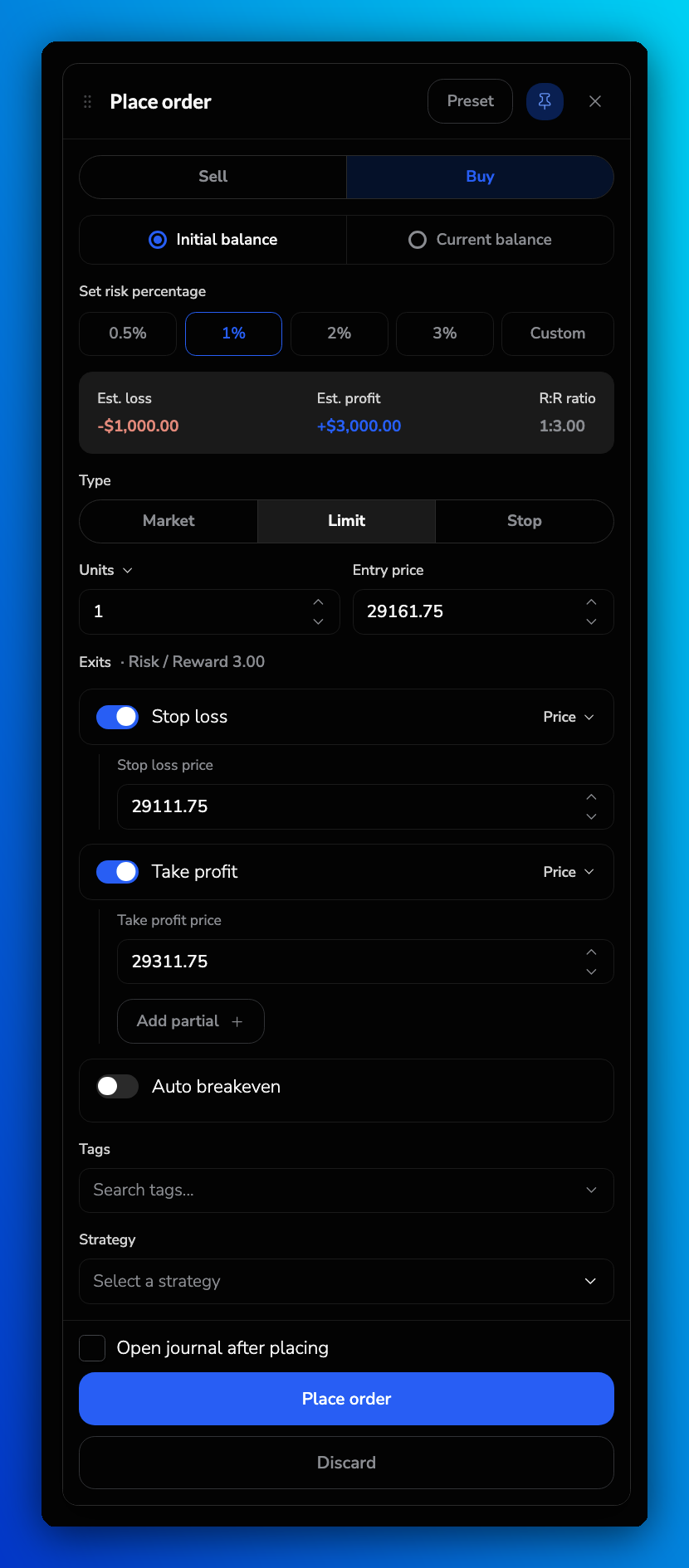
Tick Open journal after placing to write notes as soon as the trade is placed. To fill in your usual settings in one click, click Presets at the top of the window and choose a preset. See How to Use Order Presets for Faster Trade Execution.
Want to try it hands-on? Follow the interactive walkthrough on placing a trade on the New Chart, or the click-by-click guide to placing and journaling a trade.
Method 3: Buy and Sell buttons
- Enter your order size in the box at the bottom-left of the chart.
- Click Buy or Sell. The order fills at the current price.
- To add to the position, click Buy or Sell again.
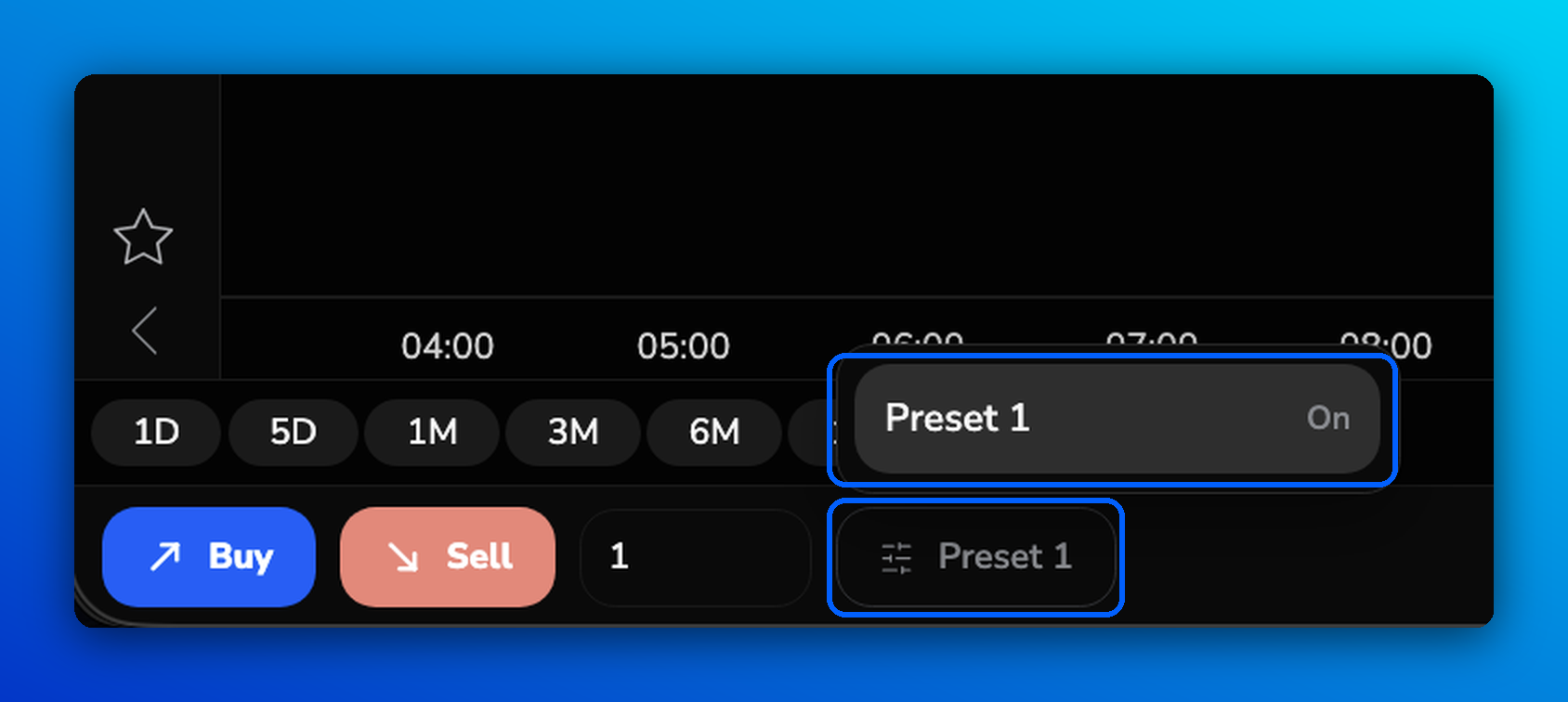
Want your stop loss and take profit added automatically? Select a preset with the Presets button next to the order size. See How to Use Order Presets for Faster Trade Execution.
Order types and shortcuts
| Type | When it fills | Windows | Mac |
|---|---|---|---|
| Market | Right away, at the current price | Alt + M | Option + M |
| Limit | When price reaches a better level (buy below or sell above the current price) | Alt + B | Option + B |
| Stop | When price breaks through a level (buy above or sell below the current price) | Alt + N | Option + N |
| Action | Windows | Mac |
|---|---|---|
| New order | Alt + , | Option + , |
| Quick buy | Alt + Q | Option + Q |
| Quick sell | Alt + Shift + Q | Option + Shift + Q |
| See all shortcuts | Alt + K | Option + K |
Limit and Stop orders stay pending until price reaches them. Press play or skip forward on the Replay Bar to move price.
Still on the Legacy Chart?
We're moving every account to the New Chart in stages, and by late October everyone will be on it. The Legacy Chart won't be available after that.
The methods are the same with a few differences: with the position tool selected, click Order in the right sidebar and choose Limit, Stop or Market, then confirm with Save. To add stop loss and take profit to the Buy and Sell buttons automatically, use Scalper Mode instead of presets.
More ways to trade
- Right-click order execution: place Limit and Stop orders straight from the chart.
- Stop loss, take profit and partial profits: set, drag and close part of your trade.
- Keyboard Shortcuts: every order and replay shortcut in one place.
Frequently Asked Questions
Why hasn't my Limit or Stop order filled?
Pending orders only fill when price reaches them. Play the replay forward, or check that the price is on the correct side of the market for that order type.
Can I add partial take profits or move my stop to break-even?
Yes. Click Add partial for extra take profits or turn on Auto breakeven before you place the order.
Do I need a stop loss and take profit?
No. Turn off the Stop loss or Take profit toggle if you don't want one.
How do I get the New Chart?
We're moving every account to the New Chart in stages, and by late October everyone will be on it. New sessions already open on the New Chart.
My order isn't being placed. What should I check?
Related articles
Keep exploring this topic.