
How to Set Stop Loss, Take Profit & Partial Profits
Set stop loss and take profit on the New Chart, add more take profits, use Auto breakeven and take partial profits from open trades.
Protect every trade with a stop loss, lock in profit with one or more take profits, and close part of a position whenever you want. You can set them when you place an order, or add and change them from the chart once the trade is open.
Set stop loss and take profit when you place an order
When you place a trade with the position tool, the Order panel fills in your stop loss and take profit from the tool (see How to Place Trades).
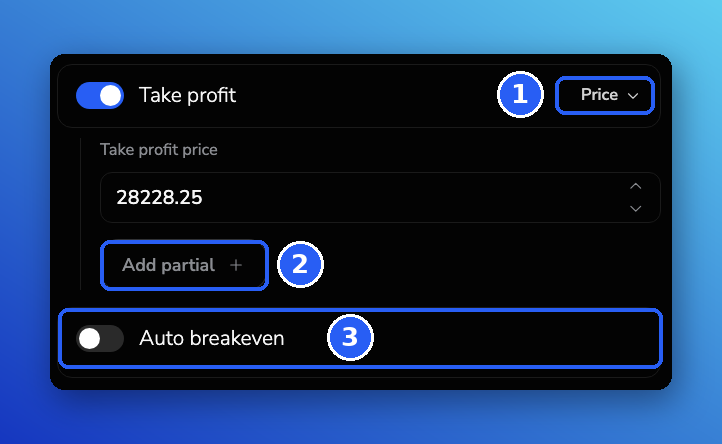
- In the Order panel, keep Stop loss and Take profit turned on.
- Use the dropdown next to each one to choose how you enter the level, for example Price (1), then enter the value.
- Click Place order.
Don't want a stop loss or take profit? Turn its toggle off before you place the order.
Add more take profits and Auto breakeven
- Add partial (2): adds another take profit level, so you can close part of the trade at each target.
- Auto breakeven (3): moves your stop loss to your entry price automatically once the trade reaches the trigger you set. Turn it on and choose the trigger: Price, Ticks, Money or Risk / reward.
Manage an open trade from the chart
Once the trade is open, its position line on the chart shows the size and your open profit or loss, with +TP (1) and X (2) next to it.
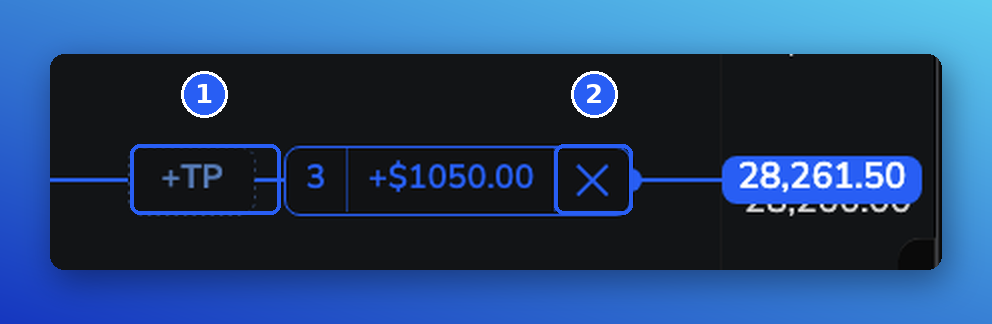
To move your stop loss or take profit, drag its line to a new price.
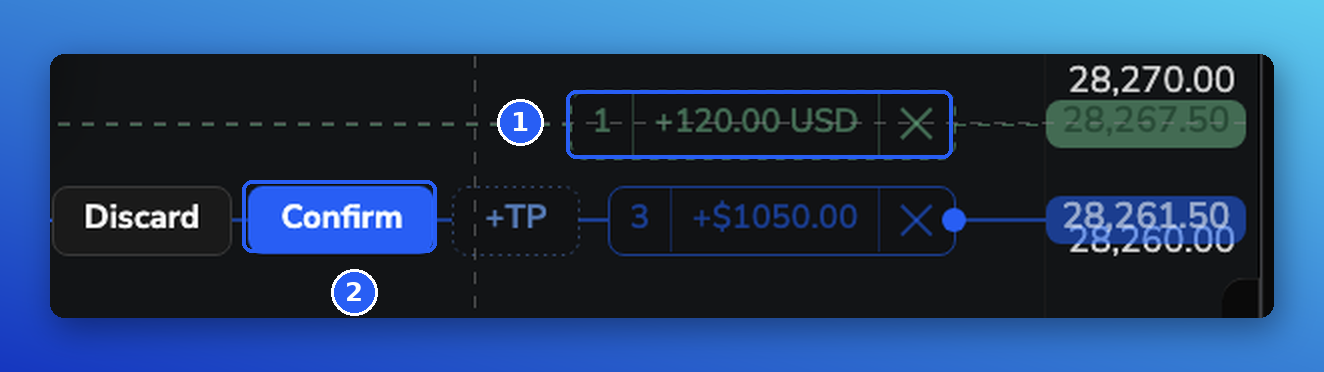
Add a take profit after entry
- Drag +TP to the price you want. The new take profit line shows the size it closes and the expected profit (1).
- Click Confirm (2). Click Discard to cancel.
Take partial profits
- Click X on the position line. The Take partials panel opens.
- Choose Use left amount on position (what's still open) or Use original position (the size you entered with) (1).
- Click 25%, 50%, 75% or 100%, or type a percentage (2). You can also type the amount to close (3); the maximum is shown below it.
- Click Save (4).
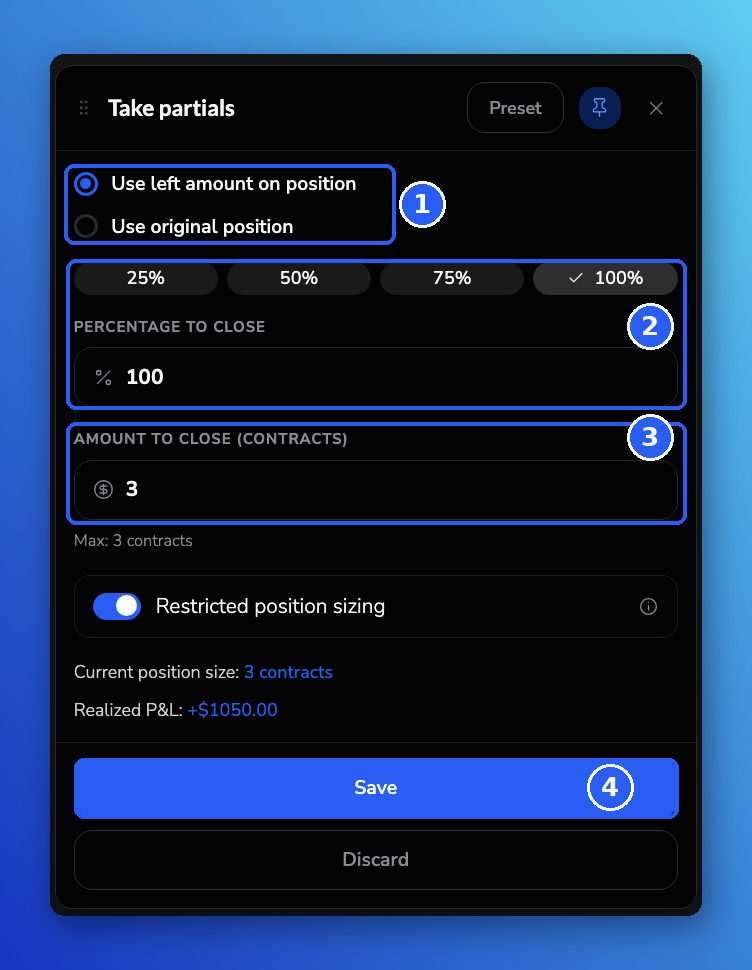
The closed part is added to your Realized P&L. Choose 100% to close the whole position.
Learn more
- How to Place Trades: Market, Limit & Stop Orders
- How to Use Order Presets for Faster Trade Execution
Frequently Asked Questions
Why can't I turn on Auto breakeven?
Auto breakeven needs a stop loss. Turn on Stop loss first.
Can I change my stop loss or take profit after the trade is open?
Yes. Drag its line on the chart to a new price.
How many take profits can I add?
Click Add partial in the Order panel for each extra level, or drag +TP on the chart and click Confirm once the trade is open.
Can I set my stop loss and take profit automatically for every trade?
Yes. Save them in an order preset. See How to Use Order Presets for Faster Trade Execution.
Does clicking X close my whole trade?
No. It opens the Take partials panel, where you choose how much to close. Choose 100% to close the whole position.
Where do I see the profit from a partial close?
It's added to your Realized P&L, which the Take partials panel also shows.
Related articles
Keep exploring this topic.