
How to Skip Ahead: Go To Sessions, Future Date & Price
Use the Go To menu to replay forward to the next session, Silver Bullet window, day open, news event, price or date in FX Replay.
Want to skip the quiet hours? The Go To menu replays the market forward to the next session, day open, news event, price or date you choose. It only moves forward. To go back, see How to Go Back in Time.
Open the Go To menu
Legacy Chart: click Go To in the floating toolbar at the top of the chart, or Go To in the right sidebar. Both open the same menu.
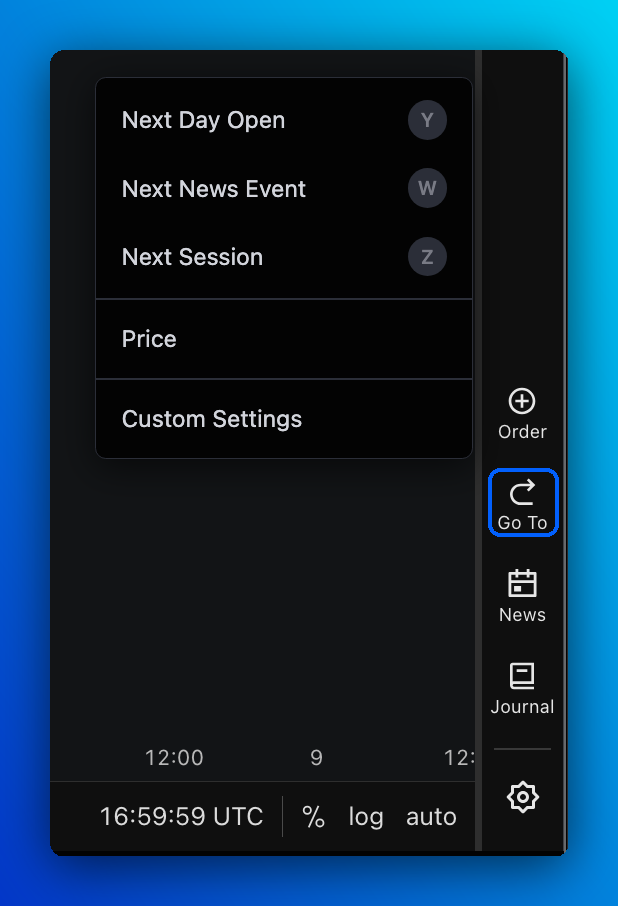
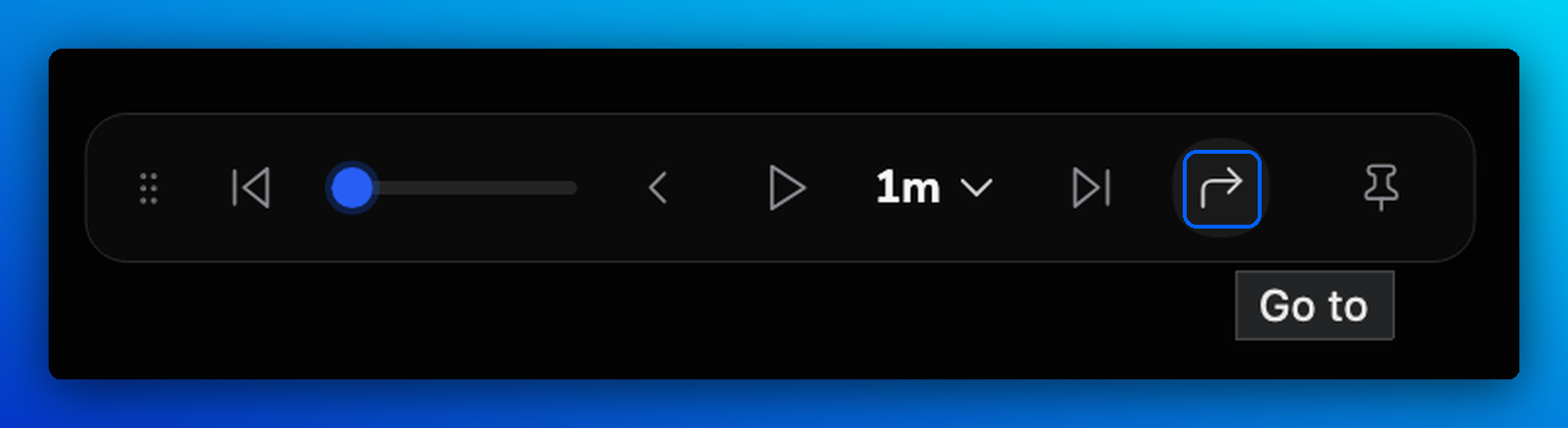
New Chart: click Go to (↱) on the Replay Bar.
Shortcut: Ctrl + Alt + G (Mac: Control + Option + G), then press the letter shown next to an option, for example N for the New York session or Y for Next Day Open.
Pick an option and the replay moves forward to that point. For example, if you're in the Asian session and choose Start of New York Session, the replay skips through Asia and London and stops at the New York open.
What each option does
| Option | Skips ahead to |
|---|---|
| Next Session | The next Asian, London or New York session, whichever comes first. You can also add each session on its own. |
| Next Day Open | The start of the next trading day |
| Next Silver Bullet Session | The next Silver Bullet window (London, NY AM or NY PM). You can also add each window on its own. |
| Next News Event | The next economic news event |
| Future Date | A date and time you pick in the Go To Future Date window. Click Jump. |
| Price | The moment price reaches a level you enter in the Go To Price window. Set Max time to skip forward (for example, 1 day) to limit how far it searches, then click Jump. |
Choose what appears in the menu
- Open the Go To menu and click Custom Settings.
- Click the star next to each option you want in the menu. Only starred options appear.
- To change a start time, pick a new one from the dropdown. All times are in New York time.
- Under Days to skip, highlight only the days you want Go To to land on. For example, highlight Mon–Thu and Go To will never stop on a Friday.
- Click Save.
To undo your changes, click Reset to defaults.
Jump ahead with right-click
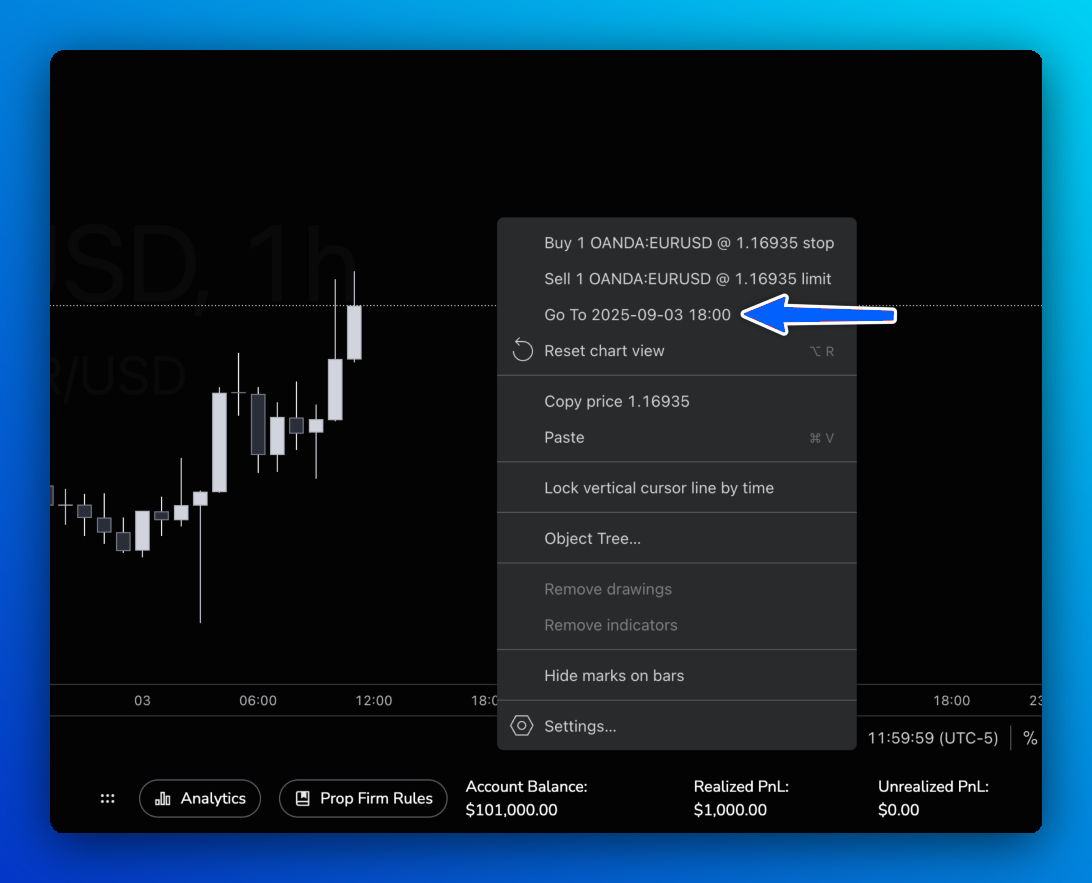
Right-click the empty area to the right of the last candle and select Go To [date and time]. Your session moves forward to the spot you clicked. This works even when Enable Go To Feature is off in Account Settings.
Frequently Asked Questions
The New York session isn't in my Go To menu. Where is it?
Open the Go To menu, click Custom Settings, star Start of New York Session and click Save.
Can I use the Go To menu to go back?
No, it only moves forward. To go back, use Previous Bar, Bar Replay or Replay to this date. See How to Go Back in Time.
What's the difference between the Go To menu and the Go To calendar?
The Go To menu replays the market forward to the point you pick. The Go To calendar at the bottom-left of the chart only moves your view to a date.
I used Go To Price but nothing happened. Why?
Price didn't reach your level within the Max time to skip forward. Increase the time or check the price you entered.
Does the Go To menu work in Prop Firm sessions?
Yes. Skipping ahead works as normal. Only going back in time is turned off.
Related articles
Keep exploring this topic.