
Custom Indicators with FXR Script
Indicators from the previous charts can't be imported directly, but you can build your own custom indicators with FXR Script and the Code Editor.
You can't import indicators from the previous charts directly, but you can build your own custom indicators in FX Replay with FXR Script and the built-in Code Editor. Many of them can be recreated this way.
Why indicators from the previous charts don't work directly
Indicators from the previous charts are written in Pine Script. FX Replay uses its own language, FXR Script, so Pine Script code can't be pasted in as it is. Copying it directly causes errors.
To use a similar indicator in FX Replay, it needs to be rewritten in FXR Script. Many traders use AI tools to help with this. You can also try the FXR Scripting GPT, which is built to write FXR Script.
Open the Code Editor
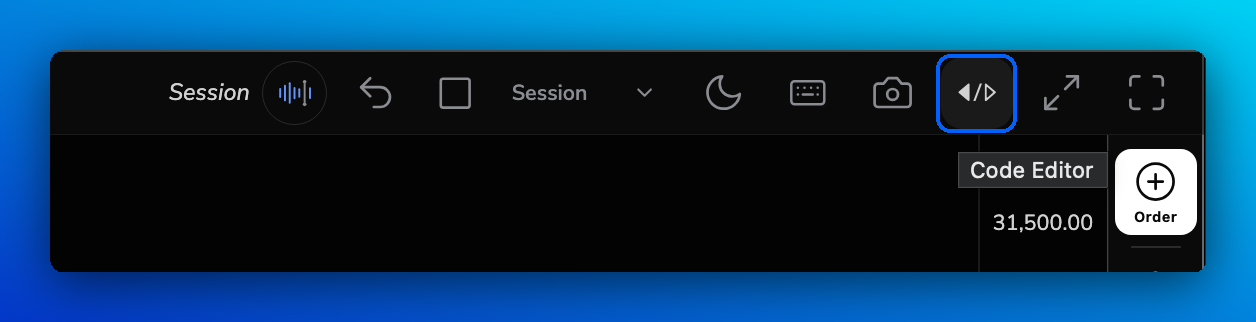
Click the Code Editor button (</>) in the top-right toolbar of your chart. It's in the same place on New Chart and Legacy Chart. The editor opens on the right side of the screen.
Create and run your own indicator
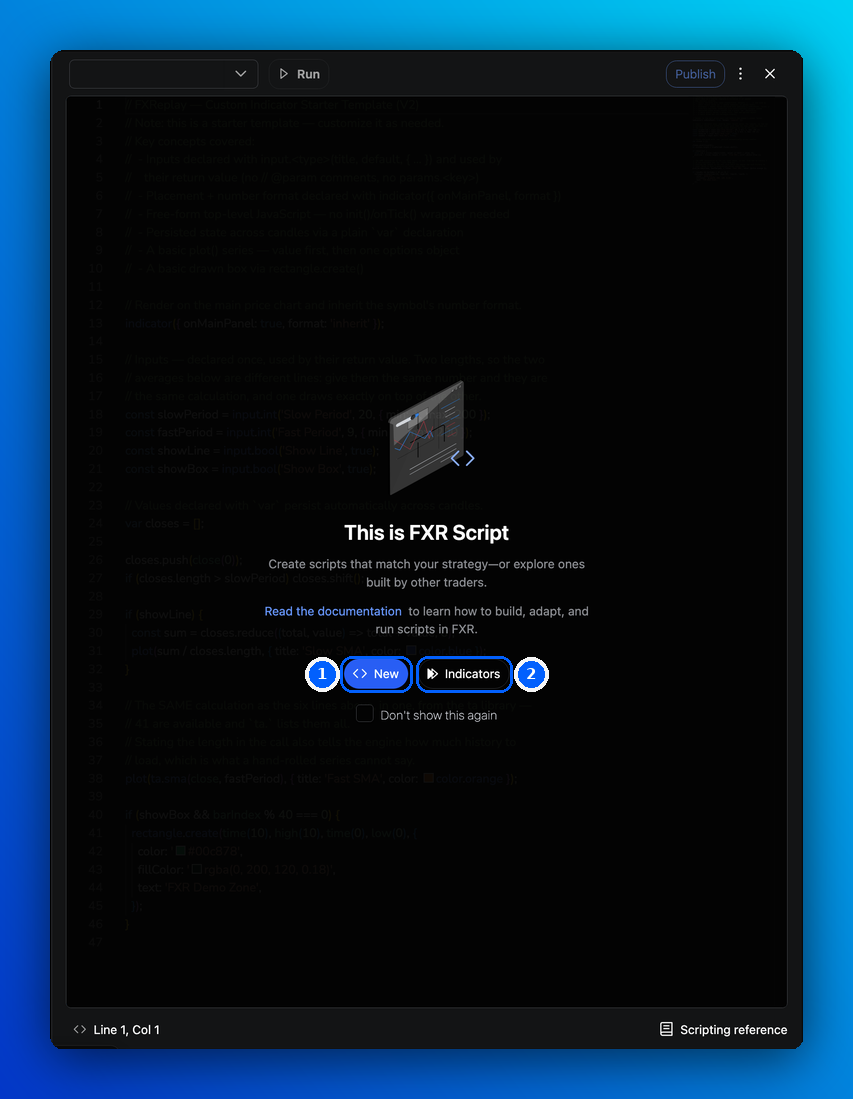
- On the welcome screen, click New to start a new script. To browse existing scripts, including ones shared by other traders, click Indicators.
- Give your indicator a name and save it. A starter template opens, ready to edit.
- Write or paste your FXR Script code.
- Click Run to apply the indicator to your chart. If a confirmation window appears, click Proceed anyway.
The Scripting reference in the bottom-right corner of the editor lists the functions you can use.
Publish your indicator
Publishing saves your indicator and lets you choose who can use it.
- Click Publish in the top-right corner of the editor. If you have unsaved changes, click Save & Publish.
- Choose who can see it (see the table below).
- Enter a name. You can't change the name after publishing.
- Add tags and a short description of what your indicator does.
- Click Publish script.
| Option | Who can use it | Source code |
|---|---|---|
| Public | Listed in FXR Community Scripts. Anyone can add it to their chart. | Anyone can read it |
| Chart only | Listed in FXR Community Scripts. Anyone can add it to their chart. | Hidden |
| Private | Only you | Only you |
To use a community script, open it and click Add to chart.
Before you publish publicly: only publish code you wrote or have permission to share, and don't use scripts to advertise or sell anything. Scripts you share can be shown to and used by other traders, and FX Replay may remove scripts that break the rules. You'll find the full rules under Our rules and Terms of use on any community script page, and in the FXR Script guidelines.
Get help with FXR Script
The ⋮ menu in the top-right corner of the editor gives you:
- Editor settings to change how the editor looks and behaves.
- FXR logs (developer mode) to see errors and messages from your script while you test it.
- Help, with links to the Documentation, the Guidelines, Discord, and forms to send a Feature request or report a bug (Bug intake).
Useful resources:
- FXR Script documentation: step-by-step tutorials, examples and the full reference.
- FXR Script guidelines: the rules for scripts you publish.
- FXR Scripting GPT: help writing or adapting scripts.
For more hands-on help, join our Discord community and post in LEARN & PRACTICE → #fxr-script. Members of our team and experienced FXR Script users regularly help with implementation questions there.
Frequently Asked Questions
Can I paste Pine Script code into FX Replay?
No. FX Replay uses FXR Script, so Pine Script needs to be rewritten first. Pasting it directly causes errors.
Which plans include custom indicators?
Custom indicators are included on the Intermediate and Pro plans. See Plans & Pricing Compared.
Is there a size limit for scripts?
Yes. A script can be up to about 100 KB (around 100,000 characters), which is roughly 2,000–3,000 lines of code.
My script shows an error. Where can I get help?
Check FXR logs in the ⋮ menu to see what went wrong, then look at the documentation. If you're still stuck, post in #fxr-script on Discord.
Can I share my indicator without showing my code?
Yes. When you publish, choose Chart only. Other traders can add it to their chart, but your source code stays hidden.
Can I rename my indicator after publishing?
No. The name can't be changed after publishing, so choose it carefully.
Where can I see all the built-in indicators?
Related articles
Keep exploring this topic.