
The New Chart: What's Changed and Where to Find Everything
FX Replay now runs on its own charting engine, the New Chart. See what's changed, where every button is, and how to rebuild your drawings and layouts.
FX Replay now runs on its own charting engine, the New Chart. We're rolling it out to everyone in stages, and by late October every account will be on it. The previous charts won't be available after that. This article explains what's changed and where to find everything.
Why we moved to the New Chart
Owning our charting engine means we can fix things and ship improvements much faster. It also opens up features we couldn't offer before:
- Faster loading of historical data
- Better overall performance
- Multiple assets per session and pane
- Order Flow tools
We're improving the New Chart every week based on what traders tell us.
Your drawings and layouts
We're sorry, but drawings and layouts can't be moved over from the previous charts. You can rebuild your setup quickly, though:
- Right-click any drawing and select Save as Template to reuse it in other sessions.
- Your layout is saved automatically. To save it manually, click the arrow next to the layout name at the top right and select Save layout (⌘S on Mac).
The same menu lets you Make a copy, Rename, Restore an earlier version or Open layout.
A quick tour of the New Chart
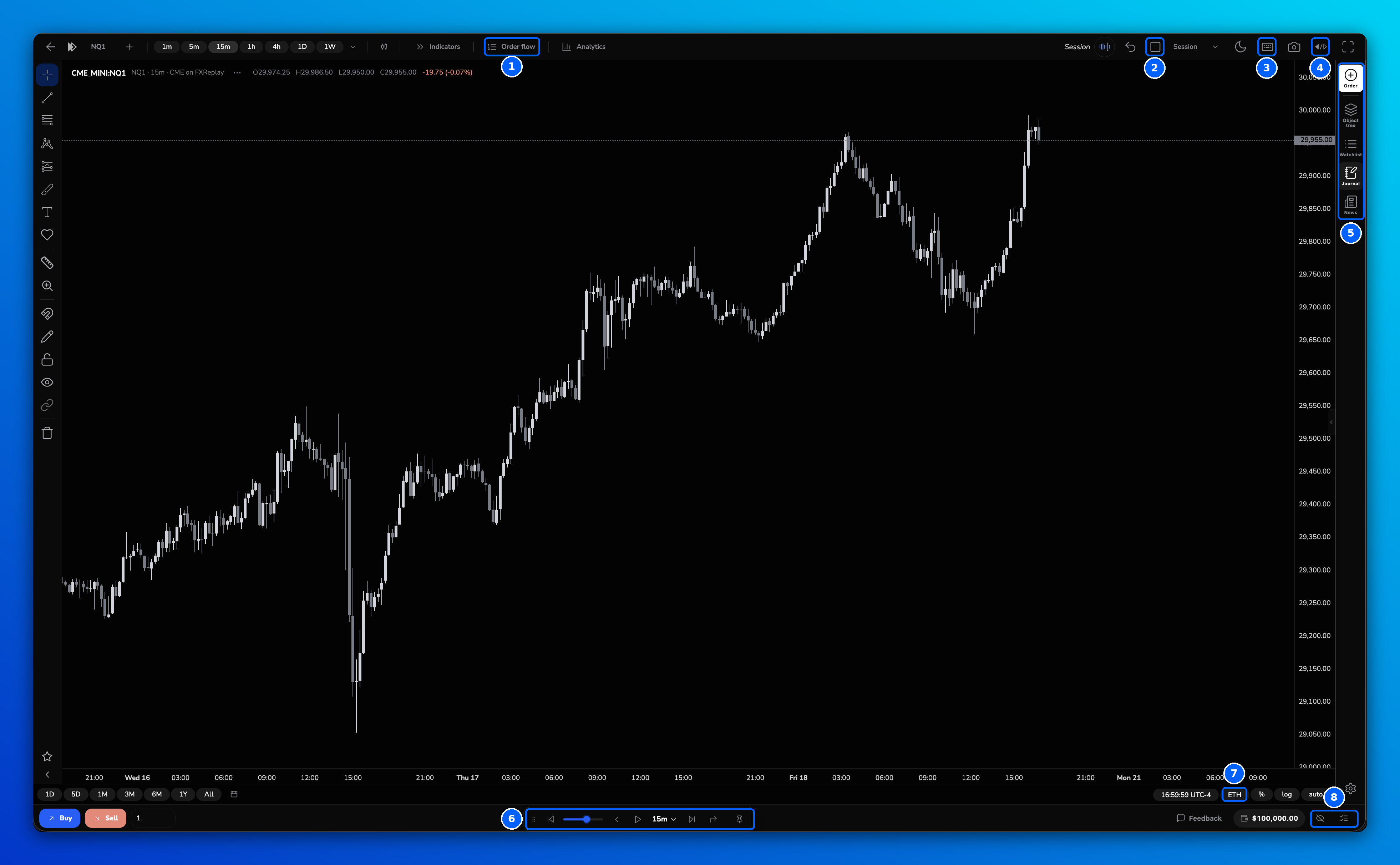
| # | Button | What it does |
|---|---|---|
| 1 | Order flow | Opens the Order Flow panel (Footprint, CVD, Time & Sales). |
| 2 | Layout | Shows up to 8 charts at once and syncs them. |
| 3 | Keyboard shortcuts | Opens the full list of shortcuts. |
| 4 | Code Editor (</>) | Opens FXR Script to create or add custom indicators. |
| 5 | Right panel | Order, Object tree, Watchlist, Journal and News. |
| 6 | Replay Bar | Play, pause, speed, skip and Go to (↱). |
| 7 | ETH | Choose extended (ETH) or regular (RTH) trading hours. |
| 8 | Privacy buttons | Hide your account balance, and hide positions and orders on the chart. |
The sections below explain each one in a few lines and link to the full article where there is one.
1. Order Flow
Click Order flow in the top toolbar, next to Indicators. The panel opens on the left, where you turn on Footprint (bid × ask volume per price), CVD (cumulative volume delta) or Time & Sales (the executed trade tape).
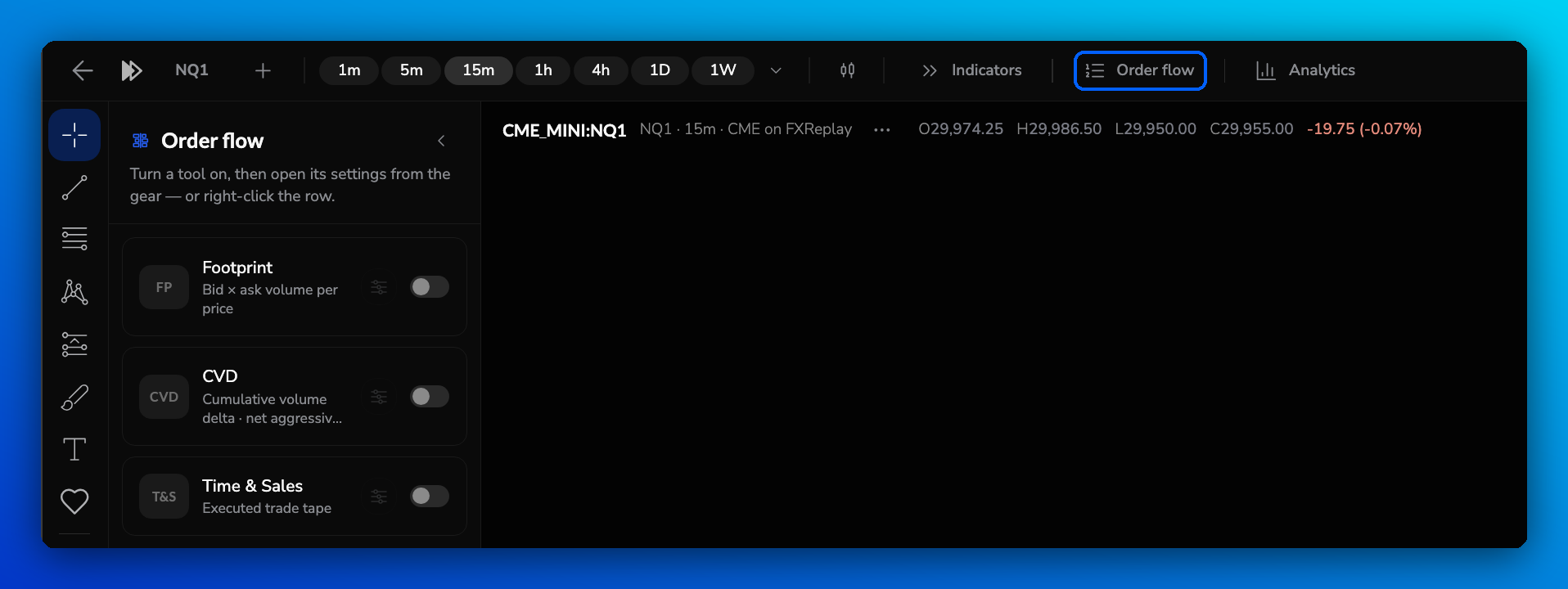
Open a tool's settings with the gear icon, or right-click its row. Order Flow works in backtesting sessions on selected futures assets. See Order Flow: Footprint, CVD & Time and Sales.
2. Layouts and Sync Chart
Click the Layout icon (square) at the top right to show 1 to 8 charts. Under Sync Chart, choose what stays linked between your charts and browser tabs.
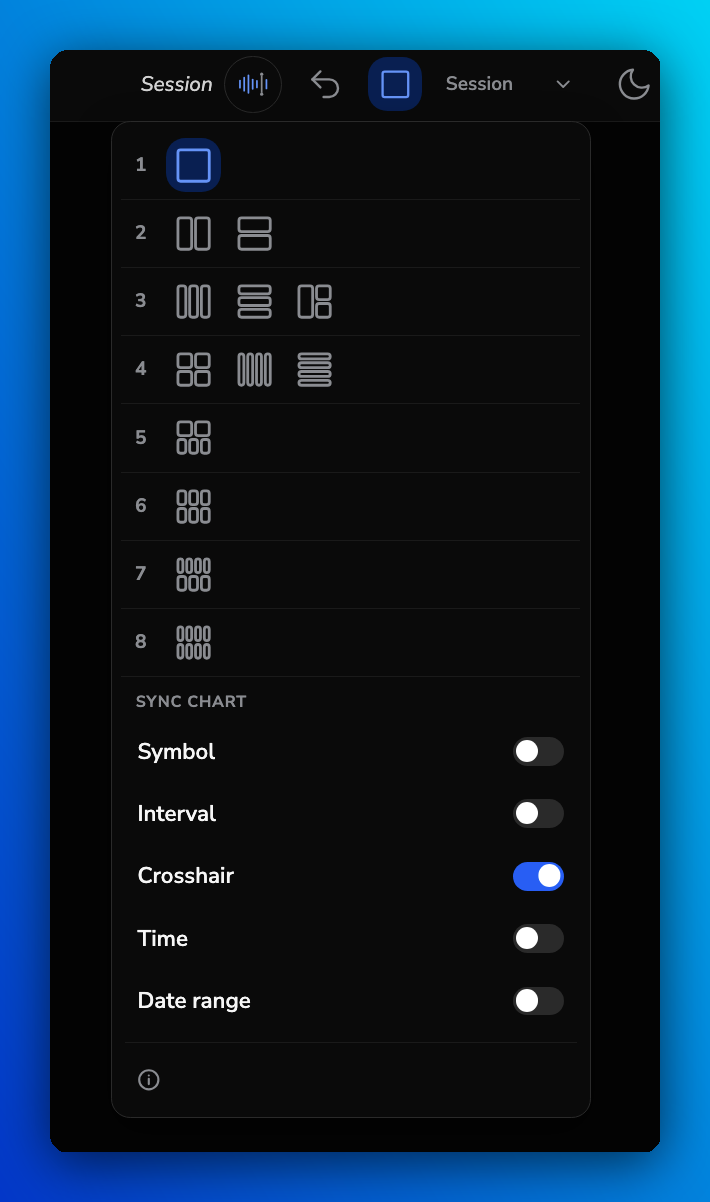
| Option | What stays in sync |
|---|---|
| Symbol | Changing the asset on one chart changes it on all of them. |
| Interval | Changing the timeframe on one chart changes it on all of them. |
| Crosshair | The crosshair points at the same candle on every chart. |
| Time | Scrolling keeps every chart on the same bars. |
| Date range | Zoom level and visible dates stay the same on every chart. |
Drawings are always shared across your charts. Your sync settings are saved to your account, so they follow you across devices. Use the + next to the symbol name to compare another asset on the same chart.
3. Keyboard shortcuts
Click the keyboard icon at the top right to see every shortcut on the New Chart. See Keyboard Shortcuts for the full list.
4. Code Editor
Click </> at the top right to open the Code Editor and create, run or publish FXR Script indicators. See Custom Indicators with FXR Script.
5. Right panel: Order, Watchlist, Journal and News
| Button | What it does |
|---|---|
| Order | Opens the Place order window to place a trade. |
| Object tree | Lists the drawings and objects on your chart. |
| Watchlist | Keep a list of assets you follow. Click + to add one. |
| Journal | Write notes for each trade while you trade. |
| News | Economic calendar for your session. Filter by country and impact (High, Medium, Low), and choose whether past and future events show on the chart. See Using the Economic Calendar Feature. |
Place order
Click Order to open the Place order window. Choose Buy or Sell, your risk, order type, units and entry price, then set your Stop loss, Take profit (with Add partial), Auto breakeven, tags and strategy. Tick Open journal after placing to write notes as soon as the trade is placed. See How to Place Trades.
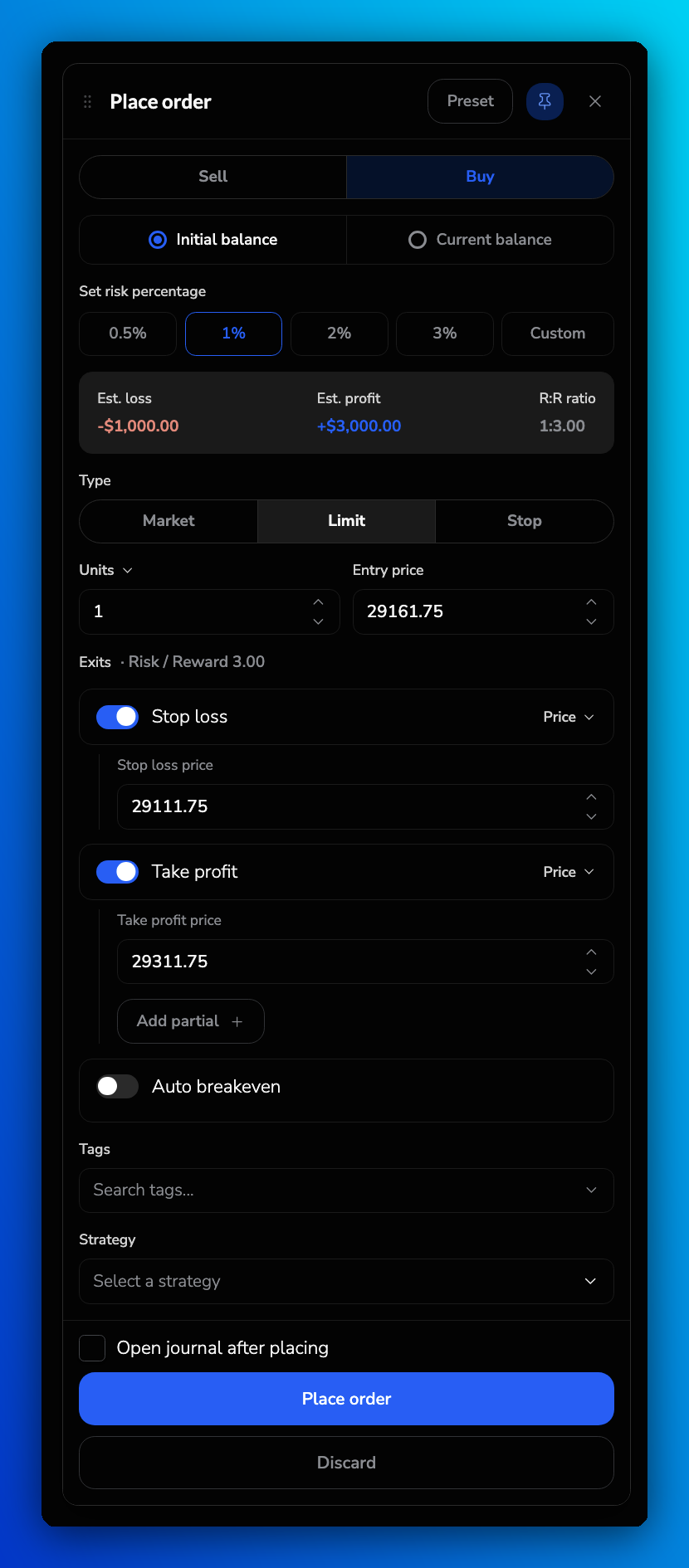
Click Preset to save your usual settings (side, order type, stop loss, take profit and position size) as a preset and reuse them on your next trades. See How to Use Order Presets for Faster Trade Execution. You can also pop the window out with the Pop out icon to move it anywhere on your screen, and click the pin icon (Dock back) to attach it to the panel again.
Want to try it yourself? Practise placing an order on the New Chart in this interactive tutorial.
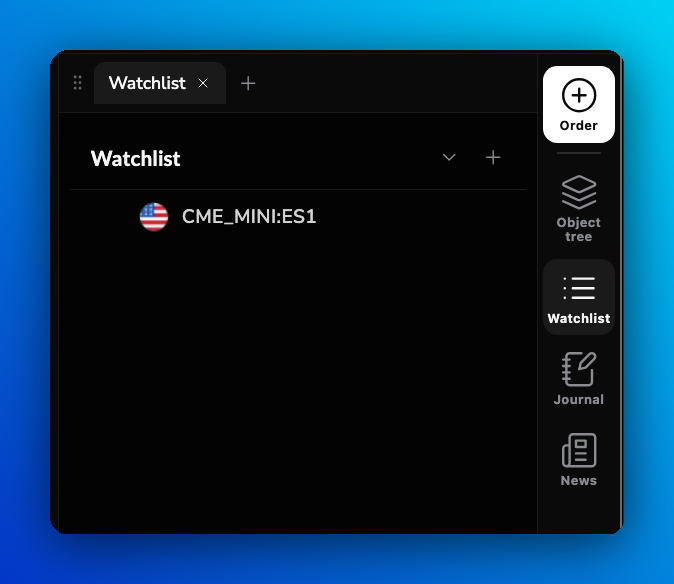
Watchlist
The Watchlist keeps the assets you follow one click away. Click + to add an asset.
Journal
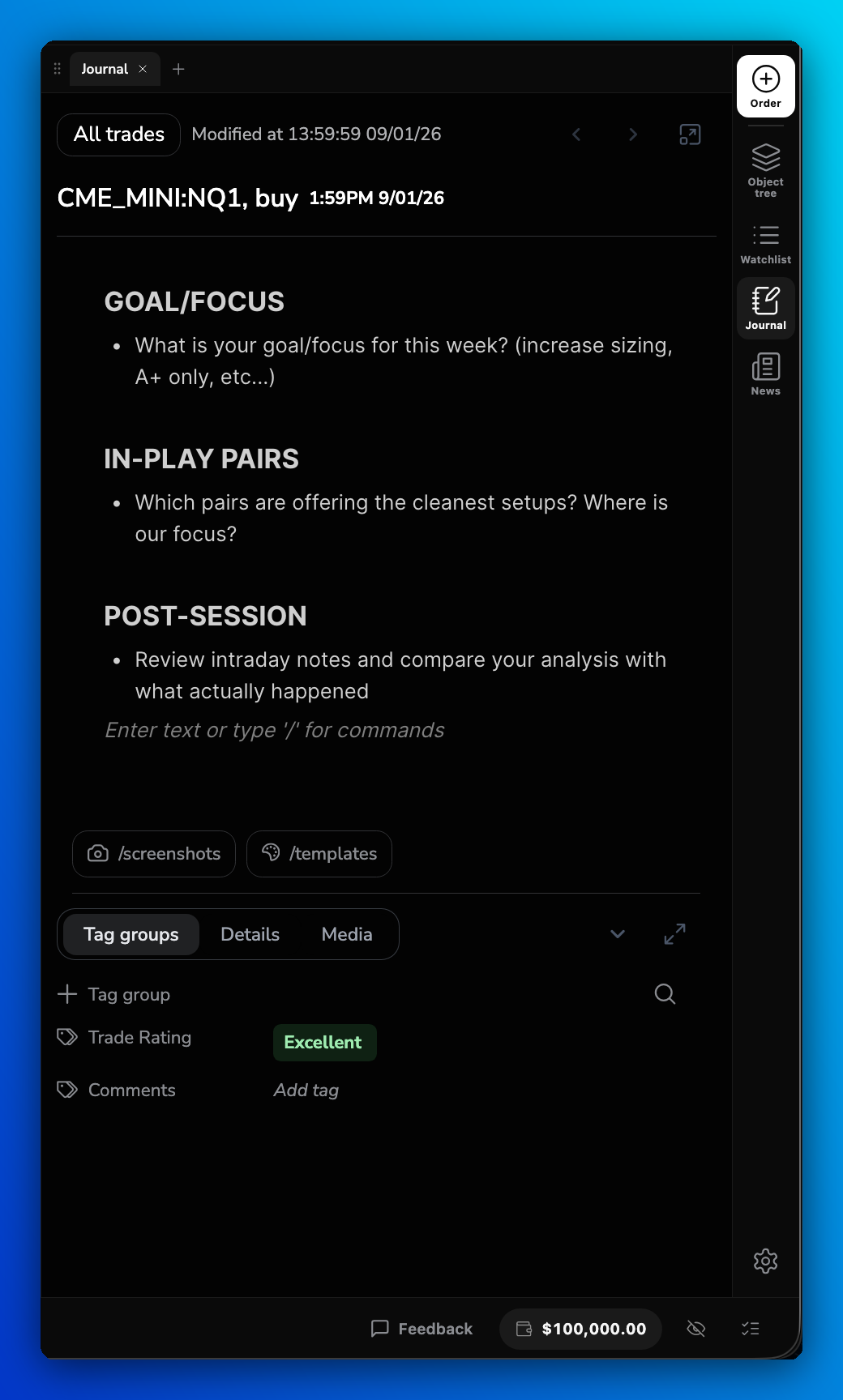
The Journal opens next to the chart, so you can write notes without leaving your session. Type / for commands, add /screenshots and /templates, and rate the trade with Tag groups. See What Is the Backtesting Journal?
For a click-by-click guide to placing and journaling a trade on the New Chart, see this interactive walkthrough.
6. Go To is now on the Replay Bar
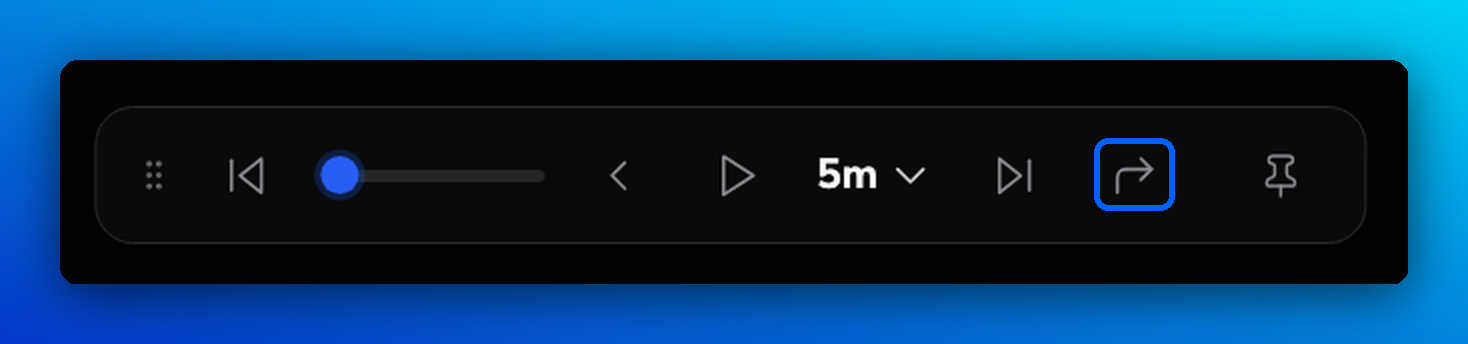
On the previous charts, Go To was in the right panel. On the New Chart, click Go to (↱) on the Replay Bar at the bottom of the chart to jump to a date.
See How to Skip Ahead, How to Go Back in Time and How to Replay the Market.
7. Extended and regular trading hours
The trading hours setting is now in the bottom-right corner of the chart. Click ETH to open the menu and choose:
- ETH — Extended Trading Hours: includes the extended and overnight sessions, so the chart shows close to 24 hours of data.
- RTH — Regular Trading Hours: shows only the regular session.
8. Hide your balance, positions and orders
Two buttons in the bottom-right corner help when you share your screen or record a video:
- Hide account balances (eye icon) masks your balance.
- Hide positions and orders (list icon) hides your open positions and orders on the chart.
Click the same button again to show them.
Other handy controls
| Control | Where | What it does |
|---|---|---|
| Chart type | Top toolbar | Bars, Candles, Hollow candles, Line, Area, Baseline, Heikin Ashi and Renko. |
| Intervals | Top toolbar, arrow next to the timeframes | Seconds to monthly intervals. Add a custom interval, or star one to add it to your favorites. |
| Theme | Moon icon, top right | Switch between dark and light theme. |
| Full screen and focus | Top right | Hides everything except the chart. |
Frequently Asked Questions
When will I get the New Chart?
We're rolling it out in stages, and every account will be on the New Chart by late October.
Can I keep using the previous charts?
No. The previous charts won't be available once the rollout is complete.
Will my drawings and layouts move over?
No, they can't be moved from the previous charts. Save drawings as templates (right-click → Save as Template). Your layout on the New Chart is saved automatically, and you can also save it from the layout menu at the top right.
Where did Go To go?
It's now the Go to (↱) button on the Replay Bar at the bottom of the chart.
Something I used is missing or doesn't work as expected. What should I do?
Tell us what it is via chat or email (see How to Contact FX Replay Support). Every report goes straight to our product team.
Related articles
Keep exploring this topic.