
What Is the Backtesting Journal?
Review your backtesting trades in one table and add notes, tags, screenshots and templates to each trade.
The Backtesting Journal saves every trade you place in your backtesting sessions. You can review them in one table and add notes, tags and screenshots to each trade. It's separate from the Live Journal, which tracks your real trades.
Where to find your trades
Go to Testing → Trades. The table lists every trade from your backtesting sessions.
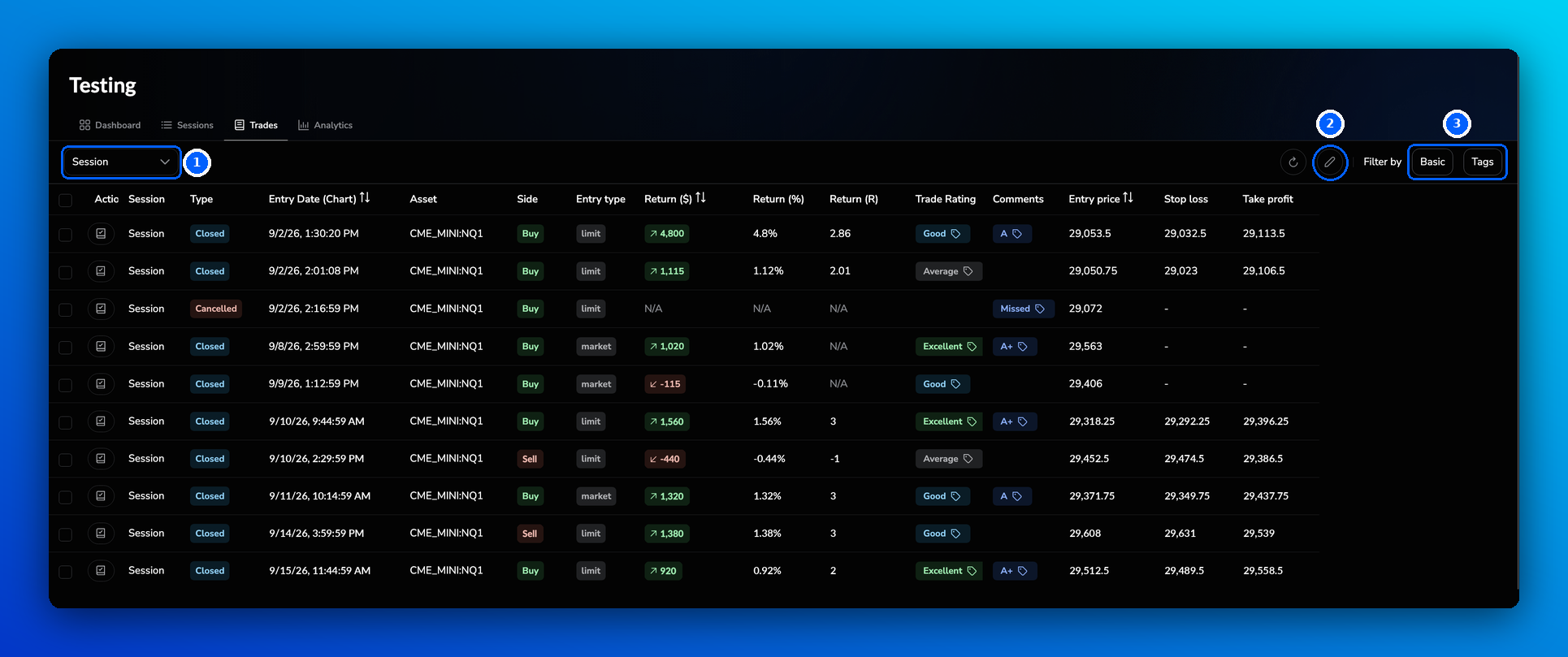
- Sessions: use the Sessions dropdown at the top left to show trades from one or more sessions only.
- Type: Closed trades were filled and closed. Cancelled orders were never filled, for example a limit order you cancelled before price reached it, so they have no result.
- Entry Date (Realtime) is when you placed the trade. Entry Date (Chart) is the date on the chart at the time of the trade.
- Sort: click the arrows next to a column name, such as Return ($) or Entry price.
- Columns: click the pencil icon at the top right to choose which columns are shown. Click the Reset table columns icon next to it to go back to the default view.
- Filters: click Basic to filter by notes, asset, side, outcome, type, date range, year, month, day or hour of the day. Click Tags to include or exclude trades with specific tags.
Journal a trade from the chart
You can open the journal for a trade as soon as you place it:
- In the Order panel, tick Open journal after placing at the bottom.
- Click Place order. The Journal panel opens on the right with your trade.
- Write your notes. Type / to see the available commands.
- Click /screenshots to add a screenshot of the current chart, or /templates to use a journal template.
- Add tags in the Tag groups tab below the notes.
You can open the Journal panel at any time with the Journal button in the right sidebar of the chart. Use the arrows at the top of the panel to move between trades.
Prefer to follow along visually? See the step-by-step guide: How to Place and Journal Trades in FX Replay.
Journal a trade from the Trades tab
- Go to Testing → Trades.
- Click the Journal trade icon in the Actions column of the trade.
- Write your notes on the right, then use the tabs on the left:
| Tab | What it shows |
|---|---|
| Details | Asset, side, entry type, entry and exit dates and prices, size, stop loss, take profit, Gross P/L, Commission and Net P/L |
| Tag groups | Add tags to the trade or create a new tag group |
| Media | Screenshots you added to the trade |
Each trade has its own journal entry, so you can write notes and add tags and screenshots for every trade separately.
Apply a template to several trades
- In Testing → Trades, tick the checkbox next to each trade you want to journal.
- Click Templates in the bar at the bottom of the screen.
- Choose a template. FX Replay templates are locked, so to change one, duplicate it first. You can also click New template to create your own, or Set as default to make a template the default for Testing Trades, Live Trades or Live Notes.
- Click Apply to and choose the selected trades.
The template is added to the journal entry of each selected trade.
Delete trades
You can't delete a single backtesting trade. Trades belong to the session they were placed in, so to remove them you need to delete the whole session:
- Go to Testing → Sessions.
- Select the session and click Delete session.
Deleting a session can't be undone. It permanently removes all of the session's trades, journal entries, stats and analytics.
In the Live Journal, you can delete single trades. See What Is the Live Journal?
Backtesting Journal vs. Live Journal
The Backtesting Journal only includes trades from your backtesting sessions. Trades from your real trading accounts are in the Live Journal. The two journals are separate: trades can't be moved between them, and their analytics aren't combined. See What Is the Live Journal?
Frequently Asked Questions
Why do all my trades have the same name?
Each trade shows the name of the session it was placed in. Trade names can't be changed.
Where can I see the result of a trade?
Check the Return ($), Return (%) and Return (R) columns in the Trades tab, or open the trade and see Gross P/L, Commission and Net P/L in the Details tab.
Can I export my journal entries?
No, journal entries can't be exported. They're saved in your FX Replay account.
Can I delete a single trade?
No. Trades belong to their session, so you can only remove them by deleting the whole session. See Delete trades above.
My notes aren't saving. What should I do?
Related articles
Keep exploring this topic.