
What Is the Live Journal?
Track your real trades in one place. Learn what the Live Journal does, how it differs from the Backtesting Journal, and how to get started.
The Live Journal is where you track your real trades from your live or prop firm accounts. It brings all your trades into one place, so you can review your performance, tag your setups and spot what's working, without spreadsheets. It's available on all plans.
Live Journal or Backtesting Journal? They're two separate journals:
| Live Journal | Backtesting Journal | |
|---|---|---|
| What it tracks | Your real trades from your trading accounts | Trades you place in FX Replay backtesting sessions |
| Where to find it | Live in the left menu | Inside your backtesting sessions |
| Setup | Add at least one trading account | None, trades are logged automatically |
Each journal has its own trades, tags and analytics. Data doesn't combine between the two. See Coexistence with Backtesting Journal.
What you can do with the Live Journal
- Sync your trades automatically from Tradovate, NinjaTrader, Alpaca, Webull, MetaTrader (MT4/MT5), TradeLocker and cTrader.
- Import trades from a CSV file from any other platform.
- Log trades manually in an account you create yourself.
- Add notes and screenshots to each trade, for example your chart before and after the trade.
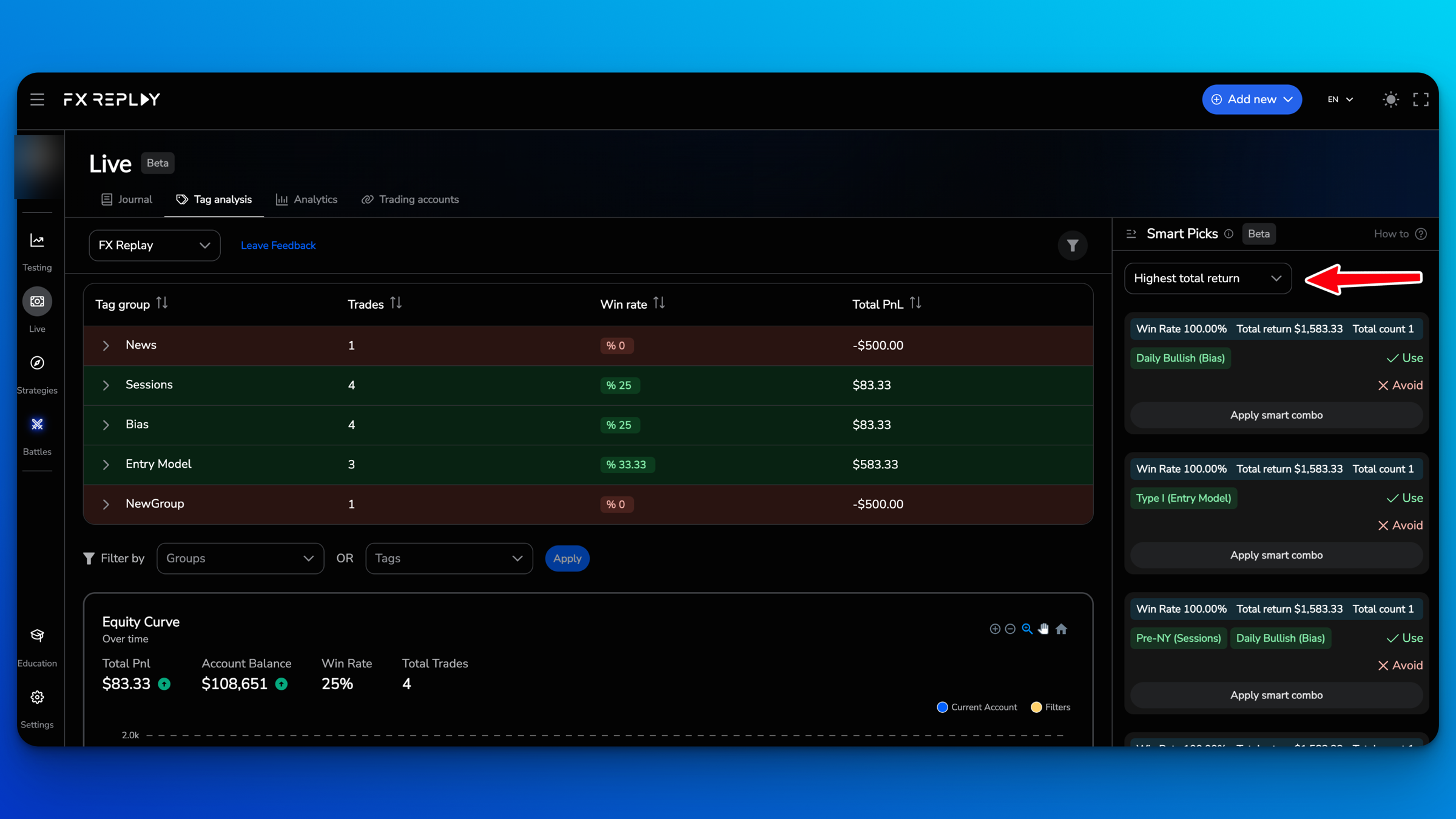
- Tag your trades and use Smart Picks to see which tag combinations have the best win rate and returns.
- Filter your trades to focus on specific setups, sessions or conditions.
- Review your analytics, such as win rate, average risk-to-reward and expectancy.
The Live tabs
When you open Live in the left menu, you'll see these tabs:
- Calendar: your results day by day.
- Trades: all your trades in one list.
- Notes: your trading notes.
- Tag analysis: how each tag performs, plus Smart Picks.
- Analytics: your performance stats.
- Trading accounts: add, connect and manage your accounts.
How to use the Live Journal
1. Add a trading account
- Click Live in the left menu.
- Open the Trading accounts tab.
- Add an account in one of three ways:
- Sync with broker: connect your platform, and your trades sync automatically.
- Upload a CSV file: import your trade history from another platform.
- Manual: create an empty account and add your trades yourself.
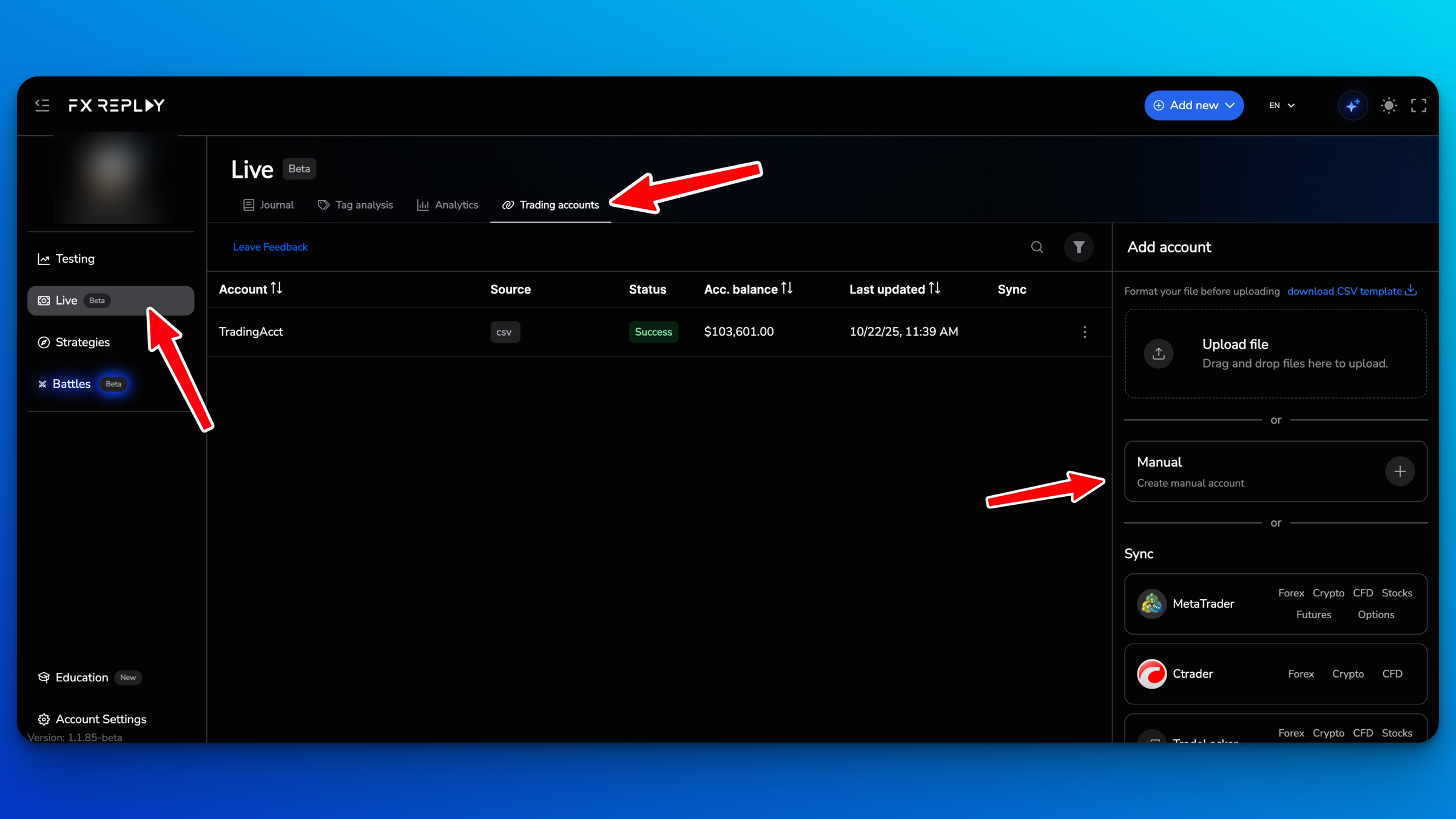
For step-by-step instructions, see Trading Accounts.
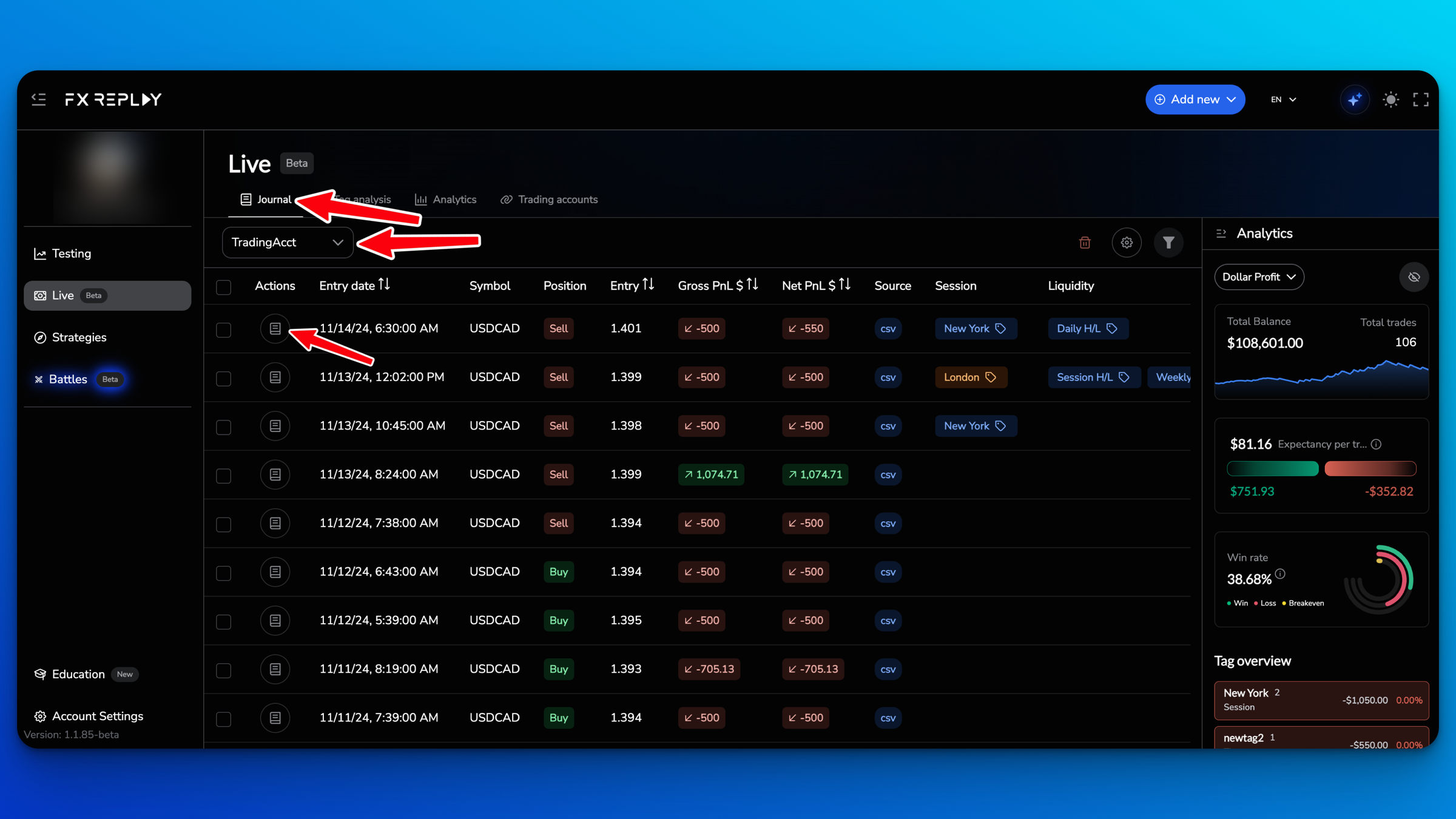
2. Open a trade
Go to the Trades tab, make sure the right trading account is selected, then click the notebook icon under Actions to open a trade.
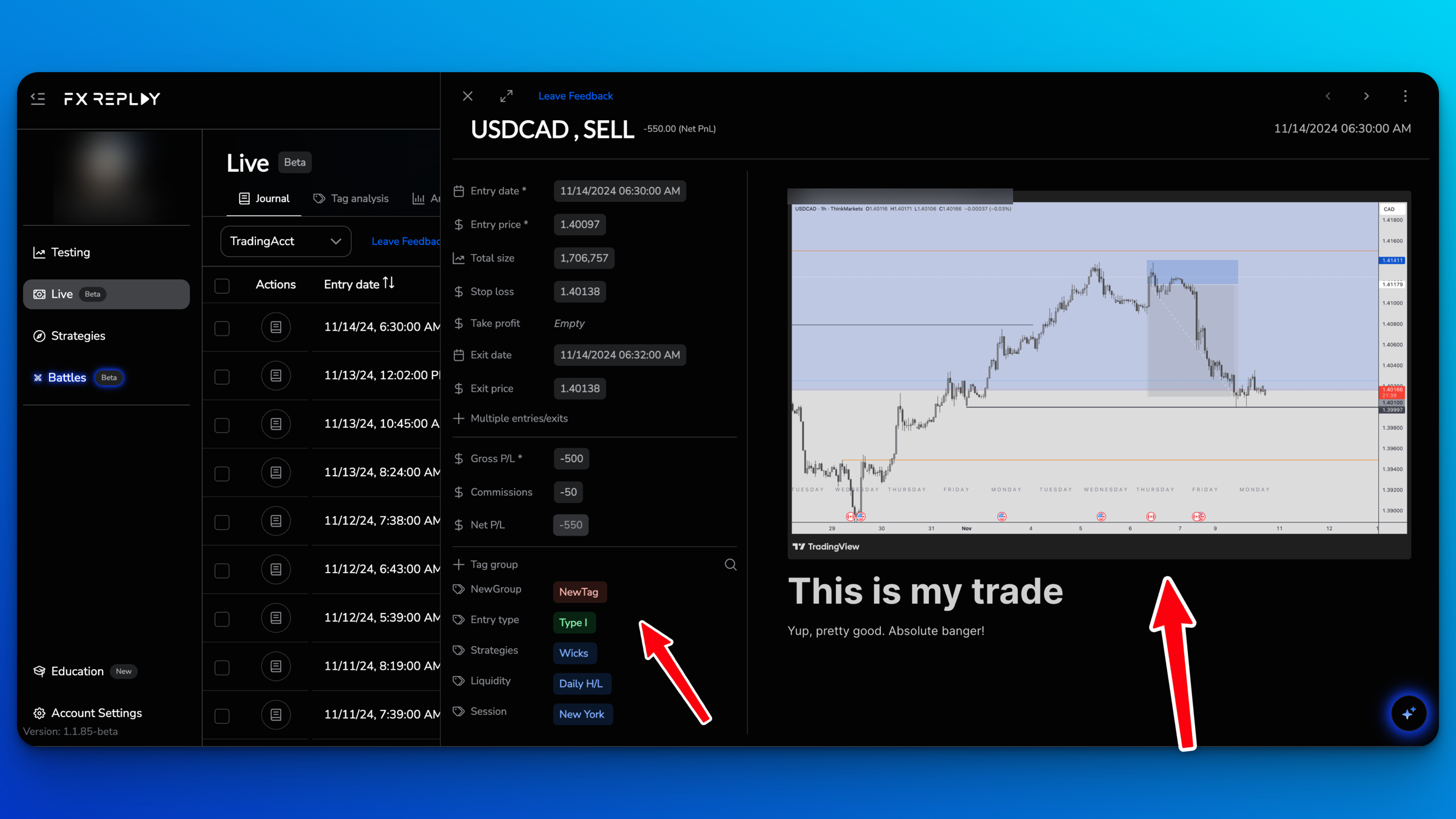
3. Add notes and tags
Add your notes and screenshots on the right side of the trade. Create or add tags on the left side.
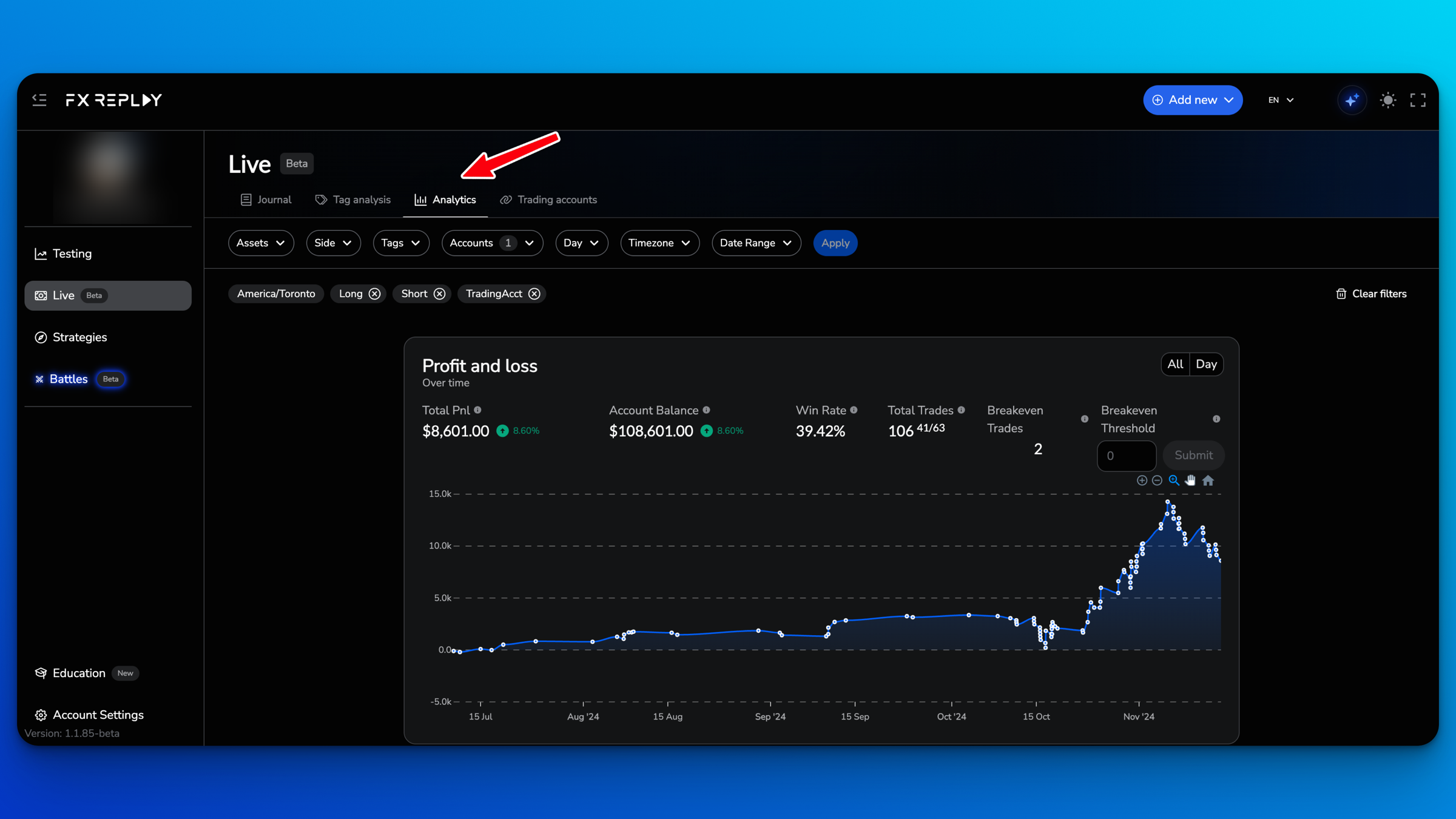
4. Review your analytics
Open the Analytics tab to see how your live account is performing.
5. Find your best setups with Smart Picks
Open the Tag analysis tab. Smart Picks suggests the tag combinations that perform best, so you can focus on the best version of your strategy.
Merge or delete trades
On the Trades tab, tick the box next to one or more trades, or use Select all. A bar appears at the bottom with Merge, Add/remove tags and Delete.
Merge trades
If an order was filled in parts, it can show up as separate trades. For example, you buy 3 contracts, but the order fills as 1 + 2. Select both trades and click Merge to combine them into one. See How to Merge Trades in the Live Journal.
Delete trades
- Select the trades you want to remove.
- Click Delete in the bottom bar.
- Click Delete again to confirm.
Deleting trades can't be undone. Re-syncing your account won't bring them back.
The only way to get all your trades back is to delete the trading account and add it again. This also permanently deletes the notes, screenshots and tags you added to your trades. To keep them, duplicate the account first: on the Trading accounts tab, click ⋮ next to the account and select Duplicate account. The copy keeps all your trades, notes and tags. Then delete the original account and add it again. See How to Connect Your Trading Account.
Learn more
- Trading Accounts: connect, import and manage your accounts.
- Live Trades: view and manage your trades.
- Analytics: understand your performance stats.
- Tag Analysis: find your best setups.
- How to Connect Your Trading Account: fix sync and import problems.
Frequently Asked Questions
Do I need to connect a broker to use the Live Journal?
No. You can create a manual account and add trades yourself, or import them from a CSV file. Connecting a platform is only needed if you want your trades to sync automatically.
Which platforms can I connect?
Tradovate, NinjaTrader, Alpaca, Webull, MetaTrader (MT4/MT5), TradeLocker and cTrader sync directly. For any other platform, you can import your trades from a CSV file.
Why can't I see my backtesting trades in the Live Journal?
The two journals are separate. Backtesting trades stay in the Backtesting Journal inside your sessions. The Live Journal only shows trades from the accounts you've added under Live.
Do my tags carry over between the two journals?
No. You can use the same tag names, but each journal keeps its own list of tags and its own insights.
Is the Live Journal included in my plan?
Yes. The Live Journal is available on all plans.
My connected account isn't syncing. What should I do?
See How to Connect Your Trading Account. If that doesn't help, contact our Support Team.
Can I restore a trade I deleted?
No. Deleted trades are removed permanently, and re-syncing your account won't bring them back. The only way to get all your trades back is to delete the trading account and add it again, which also deletes your notes, screenshots and tags, so duplicate the account first if you want to keep them. See Merge or delete trades above.
Related articles
Keep exploring this topic.