
How to Connect Your Trading Account
Sync your broker account to the Live Journal, or create a manual account and upload your trades from a CSV file.
Add your trading accounts to the Live Journal to review your real trades. Connect a broker account and sync your trades, or create a manual account and upload your trades from a CSV file. Once your trades are in, you can add notes and tags and review them in Analytics.
Add a trading account
Go to Live → Trading accounts. The Add account panel on the right gives you three options:
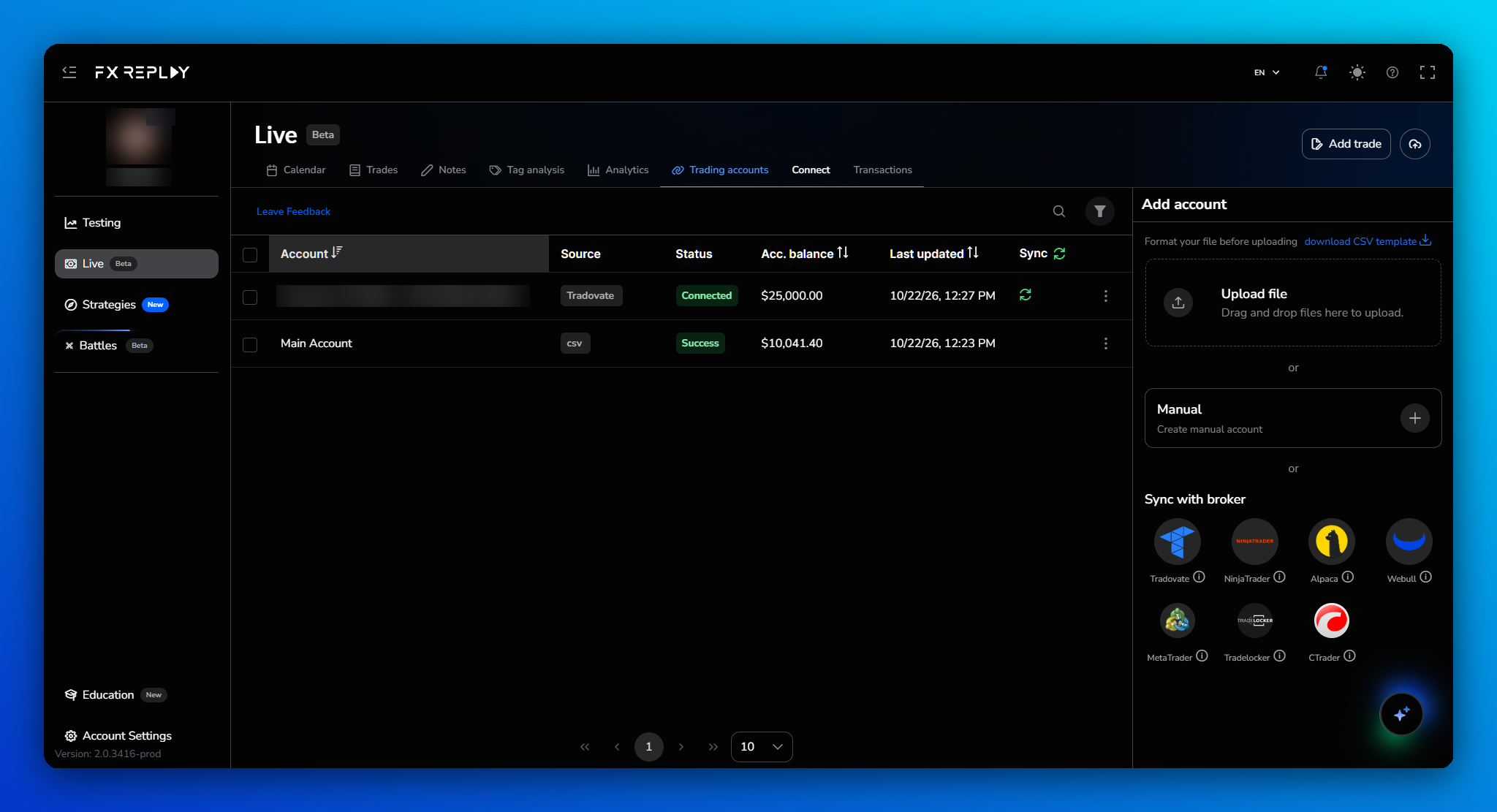
| Option | What it does |
|---|---|
| Sync with broker | Connects your broker account so you can sync your trades from it. Available for Tradovate, NinjaTrader, Alpaca, Webull, MetaTrader, TradeLocker and cTrader. |
| Manual | Creates an account you fill yourself, by uploading a CSV file or adding trades one by one. |
| Upload file | Imports trades from a CSV file into a new or existing manual account. |
Sync with your broker
- Go to Live → Trading accounts.
- Under Sync with broker, click your broker or platform. Hover the ⓘ icon next to it for details.
- Follow the steps to sign in to your broker account.
Your account appears in the list with the status Connected. The first sync can take a few minutes.
Create a manual account
- Under Manual, click +.
- Enter a name, choose the currency and Account type (Live, Demo or Prop firm), and add your initial balance and deposit date.
- Click Create account.
Upload trades from a CSV file
- Click download CSV template at the top of the Add account panel and fill it in, one row per trade.
- Drag the file onto Upload file, or click ⋮ next to a manual account and select Upload file.
- Choose the File timezone and the Account (or + Create new), then click Upload file.
You can also download the template here, with a few example trades to follow:
Sync your trades
Sync a broker account to bring in your most recent trades. New trades only come in when you sync. Manual accounts don't sync.
- One account: click the sync icon (↻) in the Sync column of that account.
- All accounts: click the sync icon (↻) next to the Sync column header.
- Selected accounts: tick the accounts, then click Sync in the bar at the bottom.
If some trades seem to be missing, sync the account again.
Manage your accounts
Click ⋮ next to an account:
| Option | What it does |
|---|---|
| View in journal | Opens the account's trades in the journal. |
| Add trade manually | Adds a single trade (manual accounts only). |
| Upload file | Uploads more trades from a CSV file (manual accounts only). |
| Manage Transactions | Opens the account's transactions. |
| Duplicate account | Creates an independent copy with all trades, notes and tags, for example before a prop firm closes a challenge account. |
| Edit account | Changes the account's details. |
| Delete | Deletes the account permanently, with all its trades, notes and tags. |
Deleting an account can't be undone. There's no separate disconnect option, so if you only want to keep your history, keep the account and stop syncing it.
Sync problems
Trades are missing or incomplete
Sync the account again, then check the Accounts filter and date range on the Trades tab.
Why it helps: a new sync fetches any trades your broker made available after the last one.
MetaTrader shows an invalid credentials error
Open MetaTrader 5, go to Tools → Options → Server, and copy the login, password and server exactly as shown there. Paste them into FX Replay instead of typing them.
Why it helps: details sent by email from a broker or prop firm can differ slightly from what your terminal uses, and even an extra space breaks the connection.
"Account Not Found" or the wrong account is connected
Check the exact account number in your broker's own platform, then connect again with that number.
Why it helps: if you have more than one account with the same broker, such as a live and a demo account, it's easy to pick the wrong one.
Duplicate or split trades
Check the trade dates and sizes. If one order was filled in parts, for example 3 contracts filled as 1 + 2, select the trades on the Trades tab and click Merge. If it's a real duplicate, select it and click Delete.
Good to know: deleted trades can't be restored, and re-syncing won't bring them back. See What Is the Live Journal?
PnL doesn't match your broker
This is usually a currency or commission difference. FX Replay shows PnL in your account's currency, and brokers can treat commissions differently.
Still stuck? Contact our Support Team and include a screenshot of what you see.
Frequently Asked Questions
Which brokers can I connect?
Tradovate, NinjaTrader, Alpaca, Webull, MetaTrader, TradeLocker and cTrader. For any other broker, create a manual account and upload your trades from a CSV file.
How long until my trades appear?
The first sync can take a few minutes. After that, new trades appear when you sync the account.
Can I add more than one account?
Yes. Add as many accounts as you need, and use the Accounts filter on the Trades tab to switch between them.
Can I disconnect a broker account without deleting it?
No. There's no disconnect option: you can sync an account or delete it, and deleting is permanent.
What can I do with my trades once they're in?
Add notes and tags to each trade and review your results in Analytics. See What Is the Live Journal?
Related articles
Keep exploring this topic.