
How to Create Your First Backtesting Session
Create your first FX Replay backtesting session in a couple of minutes: choose your balance, assets and session period, then start replaying the market.
A backtesting session lets you replay historical market data and place simulated trades to test your strategy. Setup takes about 2 minutes.
Step 1: Open the session creator
Go to Testing → Dashboard and click Backtesting session. The Create a session window opens on the Backtesting tab.
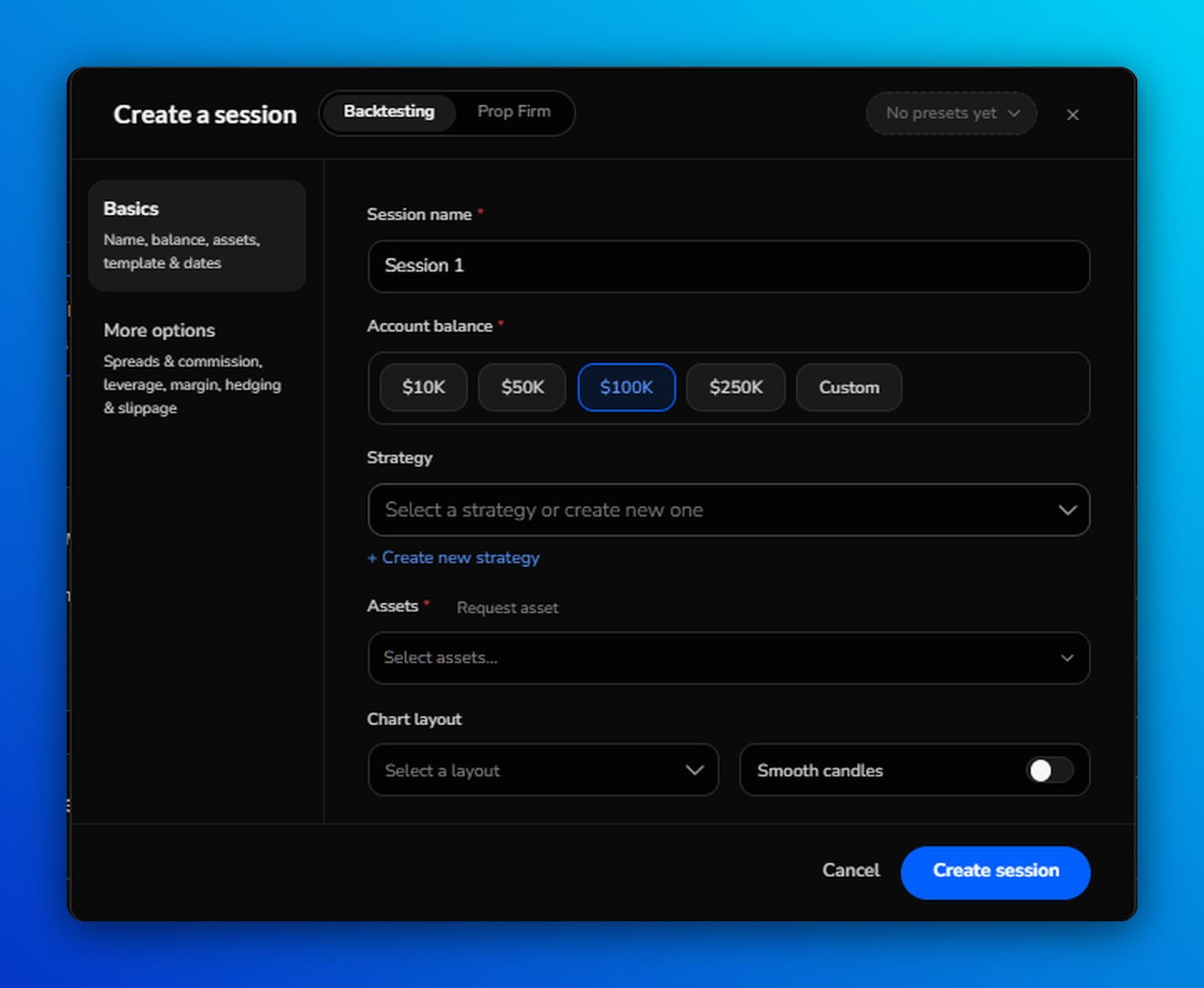
Step 2: Fill in the basics
| Field | What to do |
|---|---|
| Session name * | Name it so you'll recognise it later, e.g. NQ London Open. |
| Account balance * | Pick $10K, $50K, $100K or $250K, or click Custom. |
| Strategy | Optional. Pick a saved strategy or click Create new strategy. |
| Assets * | Search and select one or more assets, e.g. EURUSD. |
| Chart layout | Optional. Choose a saved layout or create a new one. |
| Smooth candles | Optional. Removes visual gaps between daily candles. Visual only, it doesn't affect your trades or PnL. Learn more |
Not sure which assets your plan includes? Check the Markets page. Can't find one at all? Click Request asset.
Step 3: Choose your session period
The dates appear once you've selected an asset.
- Initial date: pick a start date, or click Randomize (↻) for a random one.
- End date: choose Automatic to keep the session extending as you replay, or Custom to stop on a set date (use +1D, +1W or +1M as shortcuts).
Step 4: Create your session
Click Create session. Your chart opens at your initial date, and you're ready to replay the market and place trades.
Your session saves automatically. Find it any time in the Sessions tab.
Advanced settings
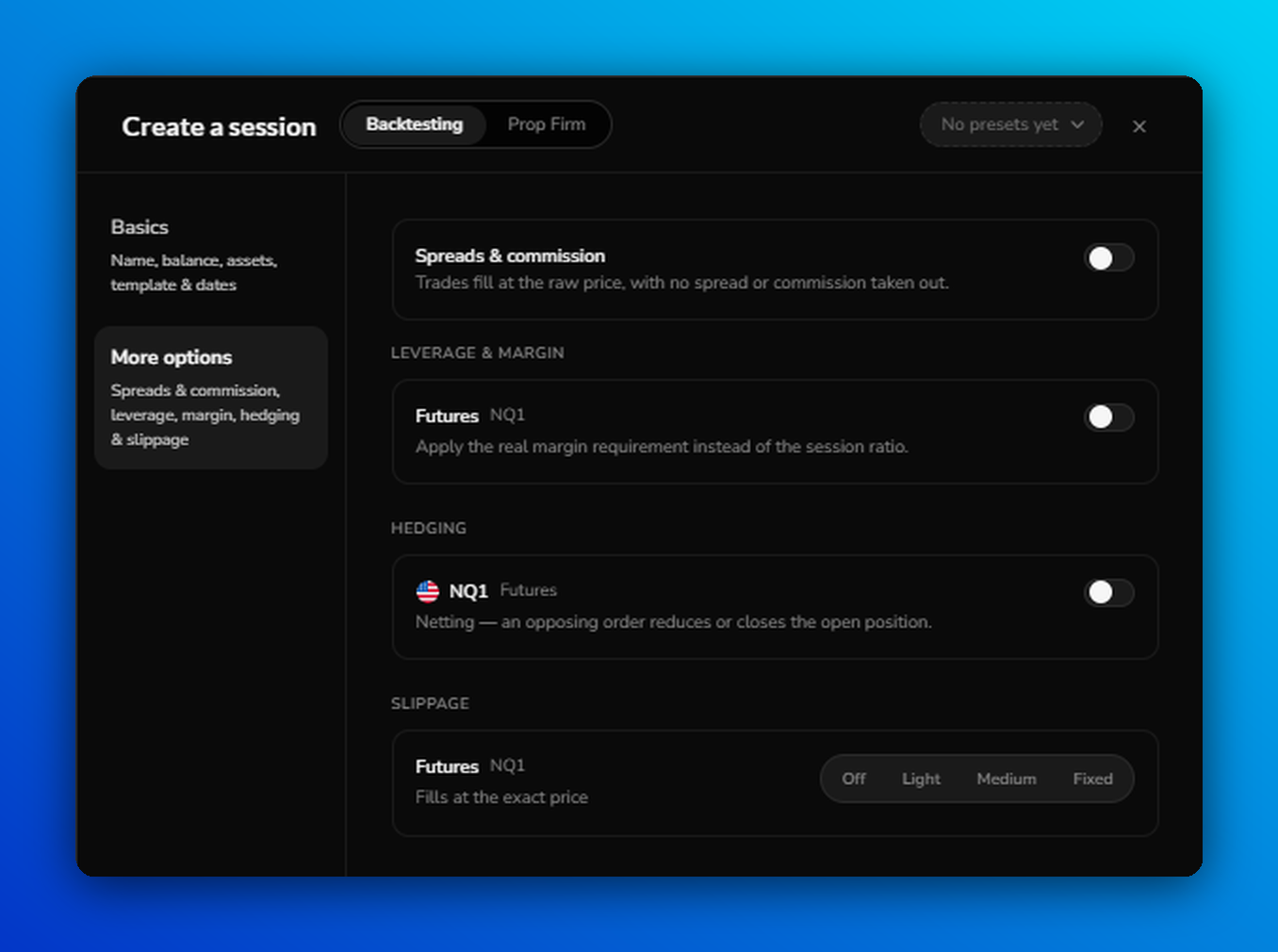
Want your session to feel closer to real trading? Click More options in the left menu of the Create a session window. These settings apply per asset, so select your assets first.
| Setting | What it does |
|---|---|
| Spreads & commission | Turn on to include spreads and commission in your trades. When it's off, trades fill at the raw price, with no spread or commission taken out. |
| Leverage & margin | Turn on to apply the asset's real margin requirement instead of the session ratio. |
| Hedging | On: you can hold separate long and short positions on the same asset at the same time. Off (netting): an opposing order reduces or closes the open position, as with most futures and stock brokers. |
| Slippage | Off fills at the exact price. Choose Light, Medium or Fixed to simulate the difference between the price you expect and the price you get. |
Hedging is off by default for futures and stocks, and on for forex and other assets. You can only set it while creating the session, so to change it later, create a new session. For a click-by-click guide, see the hedging walkthrough.
Session presets
Reuse the same setup next time: open the presets menu at the top of the window, click + Create preset, choose your settings and click Save preset.
Additional details: charting engine
New sessions open on the New Chart, our own charting engine. We're moving every account to it in stages, and by late October everyone will be on it; the Legacy Chart won't be available after that. Until then, some accounts still see a Charting engine choice when creating a session. The chart is set when you create the session and can't be changed for that session.
Learn more
Frequently Asked Questions
How many sessions can I create?
Beginner includes 2 sessions, Intermediate includes 10, and Pro is unlimited. See Plans & Pricing Compared.
Which assets are included in my plan?
Forex, index markets (such as US30), metals, energy, bonds and agricultural assets are available on all plans. Futures (including index futures such as NQ and ES), most stocks, and crypto pairs from exchanges such as Binance, Bybit and Coinbase are Pro only. Intermediate includes more stocks than Beginner. See the full list on the Markets page.
Why don't I see the date fields?
Select at least one asset first. The available dates depend on each asset's data history.
Why can't I pick an earlier date?
Each asset has its own data history. The earliest (Min) and latest (Max) dates are shown under Session period.
What's the difference between the Backtesting and Prop Firm tabs?
Backtesting lets you test freely. Prop Firm adds prop firm rules, such as profit targets and loss limits. See Prop Firm Simulator: How It Works.
Can I change hedging after creating a session?
Hedging can only be set while you create the session. To use a different hedging setting, create a new session.
Related articles
Keep exploring this topic.