
What Is the Backtesting Journal?
Review your backtesting trades in one table, add notes, tags, screenshots and templates to each trade, and find your Session Minutes.
The Backtesting Journal saves every trade you place in your backtesting sessions. You can review them in one table and add notes, tags and screenshots to each trade. Your Session Minutes from Talk to Journal are saved here too. It's separate from the Live Journal, which tracks your real trades.
Where to find your trades
Go to Testing → Trades. The table lists every trade from your backtesting sessions.
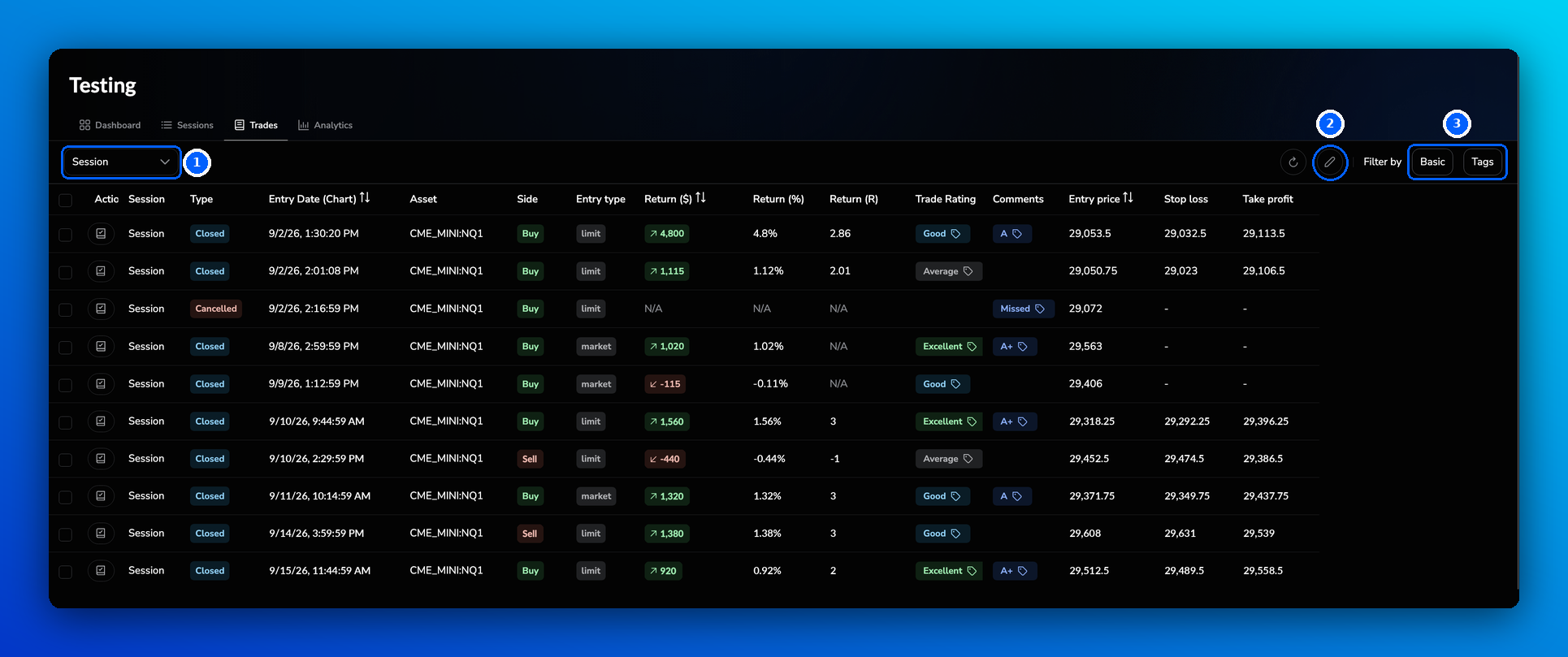
- Sessions: use the Sessions dropdown at the top left to show trades from one or more sessions only.
- Type: Closed trades were filled and closed. Cancelled orders were never filled, for example a limit order you cancelled before price reached it, so they have no result.
- Entry Date (Realtime) is when you placed the trade. Entry Date (Chart) is the date on the chart at the time of the trade.
- Sort: click the arrows next to a column name, such as Return ($) or Entry price.
- Columns: click the pencil icon at the top right to choose which columns are shown. Click the Reset table columns icon next to it to go back to the default view.
- Filters: click Basic to filter by notes, asset, side, outcome, type, date range, year, month, day or hour of the day. Click Tags to include or exclude trades with specific tags.
Journal a trade from the chart
You can open the journal for a trade as soon as you place it:
- In the Order panel, tick Open journal after placing at the bottom.
- Click Place order. The Journal panel opens on the right with your trade.
- Write your notes. Type / to see the available commands.
- Click /screenshots to add a screenshot of the current chart, or /templates to use a journal template.
- Add tags in the Tag groups tab below the notes.
You can open the Journal panel at any time with the Journal button in the right sidebar of the chart. Use the arrows at the top of the panel to move between trades.
Prefer to follow along visually? See the step-by-step guide: How to Place and Journal Trades in FX Replay.
Session Minutes from Talk to Journal
When you stop a recording with Talk to Journal in a backtesting session, your Session Minutes are saved as a note in that session's Journal. To find them:
- Open the backtesting session you recorded in.
- Click Journal in the right sidebar of the chart.
- Open the Notes tab, next to Trades and Calendar.
- Look for the note called Session minutes. It shows the date and time of your recording.
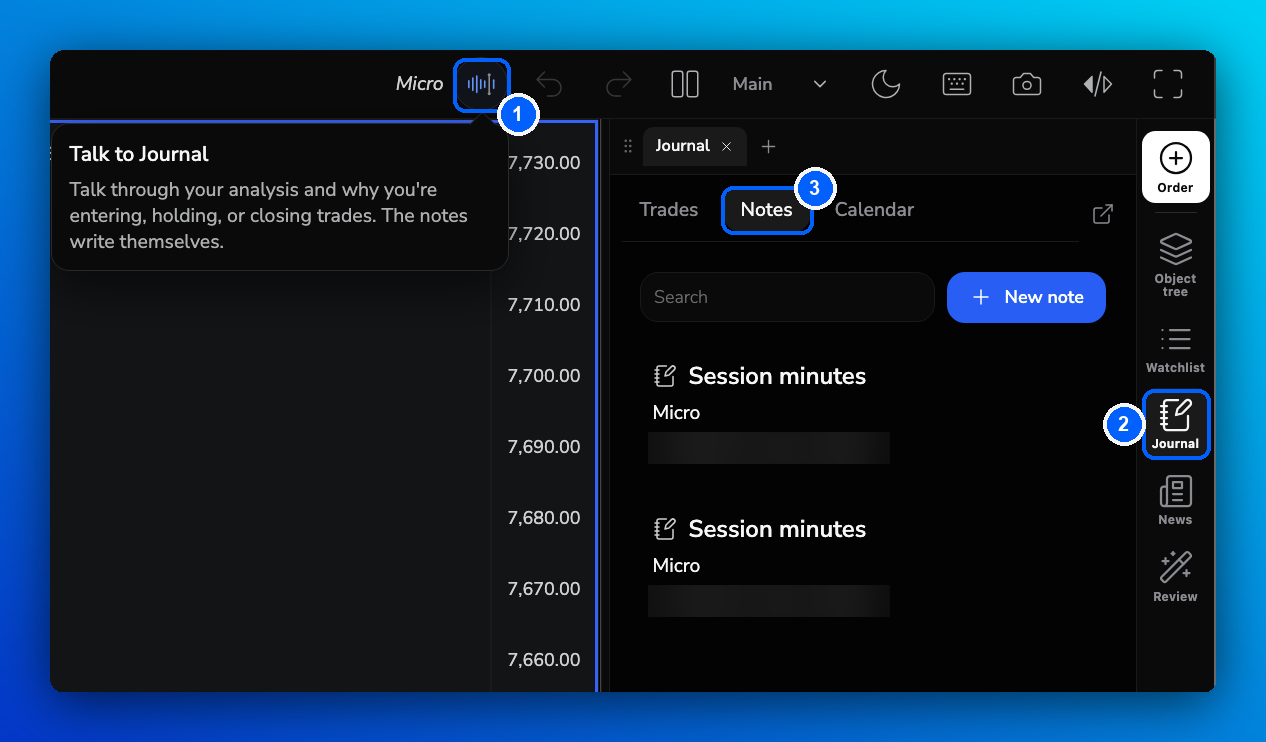
It can take a moment for the note to appear after you stop recording. If it isn't there yet, wait a little, then open the Notes tab again. You can always find your minutes there, even if the View button in the message you see after stopping doesn't open them.
If the note still doesn't appear, contact our Support Team and send a screen recording of what you see.
Journal a trade from the Trades tab
- Go to Testing → Trades.
- Click the Journal trade icon in the Actions column of the trade.
- Write your notes on the right, then use the tabs on the left:
| Tab | What it shows |
|---|---|
| Details | Asset, side, entry type, entry and exit dates and prices, size, stop loss, take profit, Gross P/L, Commission and Net P/L |
| Tag groups | Add tags to the trade or create a new tag group |
| Media | Screenshots you added to the trade |
Each trade has its own journal entry, so you can write notes and add tags and screenshots for every trade separately.
Apply a template to several trades
- In Testing → Trades, tick the checkbox next to each trade you want to journal.
- Click Templates in the bar at the bottom of the screen.
- Choose a template. FX Replay templates are locked, so to change one, duplicate it first. You can also click New template to create your own, or Set as default to make a template the default for Testing Trades, Live Trades or Live Notes.
- Click Apply to and choose the selected trades.
The template is added to the journal entry of each selected trade.
Delete trades
You can't delete a single backtesting trade. Trades belong to the session they were placed in, so to remove them you need to delete the whole session:
- Go to Testing → Sessions.
- Select the session and click Delete session.
Deleting a session can't be undone. It permanently removes all of the session's trades, journal entries, stats and analytics.
In the Live Journal, you can delete single trades. See What Is the Live Journal?
Backtesting Journal vs. Live Journal
The Backtesting Journal only includes trades from your backtesting sessions. Trades from your real trading accounts are in the Live Journal. The two journals are separate: trades can't be moved between them, and their analytics aren't combined. See What Is the Live Journal?
Frequently Asked Questions
Why do all my trades have the same name?
Each trade shows the name of the session it was placed in. Trade names can't be changed.
Where can I see the result of a trade?
Check the Return ($), Return (%) and Return (R) columns in the Trades tab, or open the trade and see Gross P/L, Commission and Net P/L in the Details tab.
Can I export my journal entries?
No, journal entries can't be exported. They're saved in your FX Replay account.
Can I delete a single trade?
No. Trades belong to their session, so you can only remove them by deleting the whole session. See Delete trades above.
My notes aren't saving. What should I do?
Where are my Session Minutes saved?
In the Journal of the session you recorded in. Open Journal in the right sidebar of the chart, then the Notes tab, and look for the note called Session minutes.
Related articles
Keep exploring this topic.